



# Prepaid packs and balances
The screenshots show invented workspaces and people.
# What you can buy
A pack is a one-time purchase of 100 units of one product, either credentials or envelopes. It is not a subscription. Nothing renews or reloads automatically, and there is no automatic overage billing. A credential pack never pays for an envelope, and an envelope pack never pays for a credential. Buying a pack does not unlock paid-plan features.
| Buyer at checkout | 100 credentials | 100 envelopes |
|---|---|---|
| No paid subscription (including trials and free Community) | $100 | $50 |
| Current paid monthly subscriber | $75 | $40 |
| Current paid annual subscriber | $50 | $20 |
| Verified nonprofit on a current paid annual subscription | $35 | $15 |
Prices are in US dollars, before any applicable tax. The server sets your price class for your workspace when checkout starts, and the order keeps that price.
Credits from both pack types last 24 months from each purchase and are kept if a plan is canceled. A new purchase never extends an older pack. Reminders go out 60 and 30 days before unused units expire. Support refunds completely unused packs within 30 days; there is no refund button in the app.
One credential credit issues one award, including its badge, certificate and portable credential. One envelope is one signing round of one document.
# Buying from the public site
On the pricing page, Buy 100 credentials and Buy 100 envelopes take you to signup. The choice of pack stays with you through signup, email verification and workspace creation. You don't have to pick a signing plan. Signup describes the pack as "100 digital credentials, bought once from Billing after your workspace exists. No signing plan is needed." You buy the pack in Billing, where the option you chose is marked Your choice.
# Billing: buying a pack
Open Settings → Billing. The Prepaid packs section shows the price checkout would charge your workspace right now. When you get a discount, the standard price appears next to it, for example "Annual subscriber price (standard $100)".
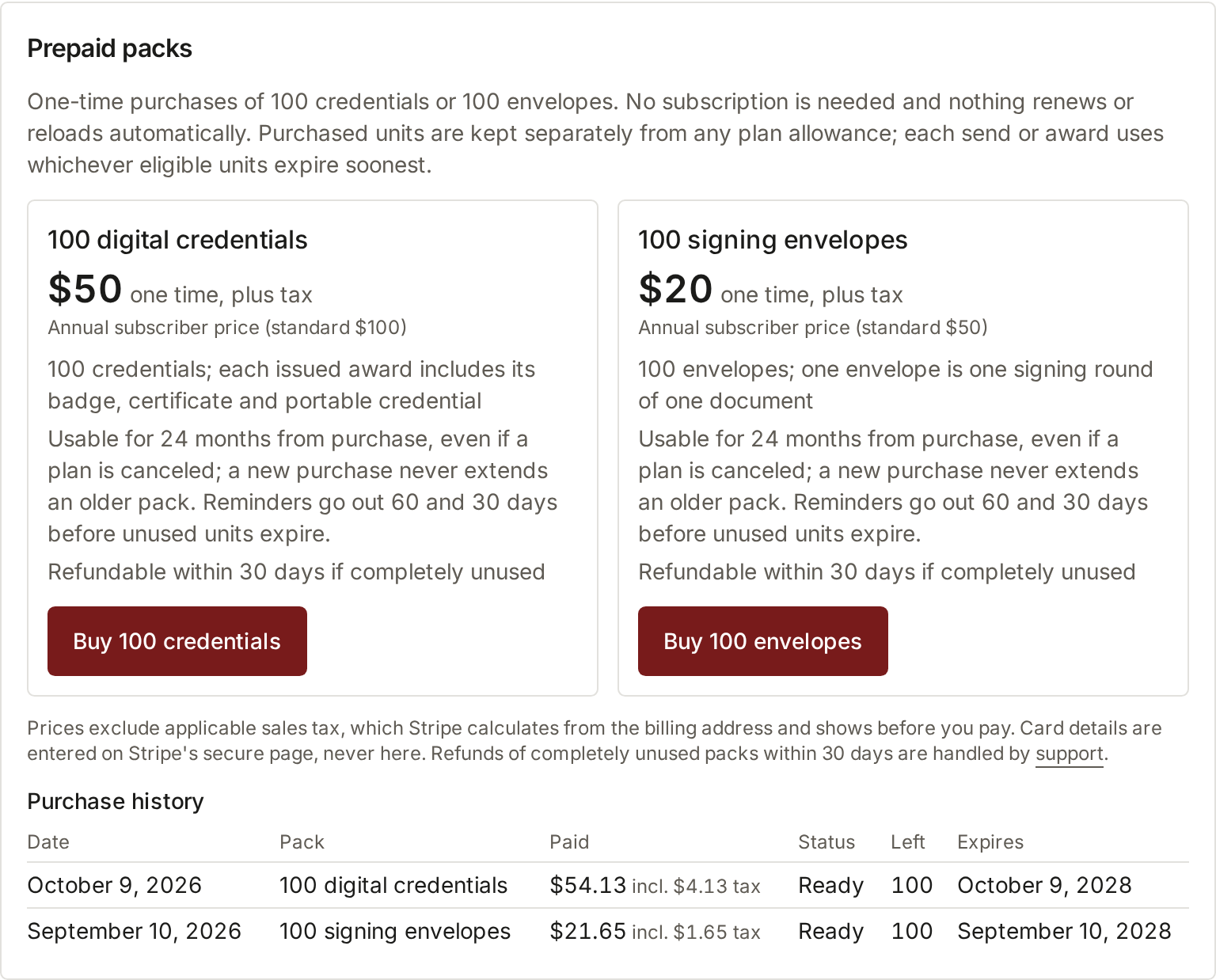
On a phone:
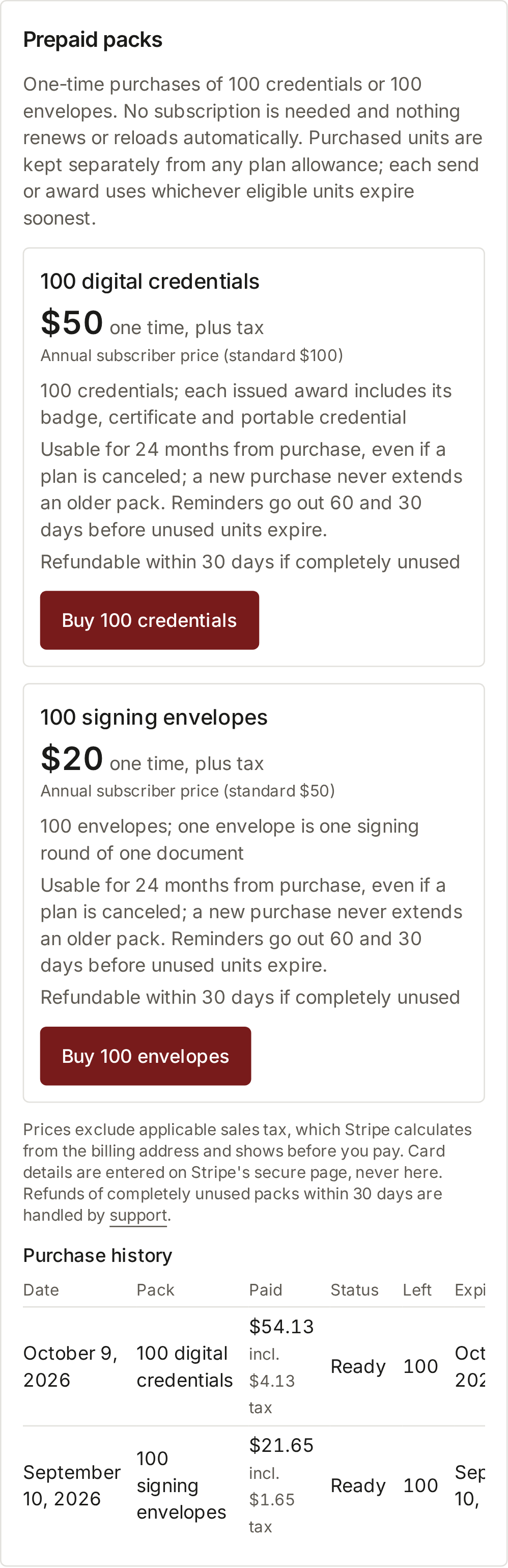
Choose Buy 100 credentials or Buy 100 envelopes. You enter your card on Stripe's secure page, never in eScryber. Stripe calculates sales tax from the billing address and shows it before you pay. Owners and admins with billing access can buy. Everyone else sees "Ask a workspace owner or admin with billing access to buy a pack."
When you come back from checkout, Billing shows the order's status. Credits are added only after Stripe confirms the payment, never because the browser came back:
| Message | Meaning |
|---|---|
| Confirming your payment with Stripe… Credits are added only once it is confirmed. | Stripe has not confirmed the payment yet. |
| Payment confirmed. Your credits are ready to use. | The pack is in your balance. |
| Your payment is still being confirmed. Credits appear here once Stripe confirms it; you do not need to pay again. | Confirmation is taking longer than usual. |
| We received your payment and are checking it before adding credits. Support will follow up if anything is needed. | Support is reviewing the order. |
| Checkout was canceled. Nothing was charged. | You left checkout. |
| This checkout expired or was canceled. Nothing was charged. | The checkout session ended without payment. |
Purchase history lists each order with its date, amount paid (and any tax), status, units left and expiry date. The statuses are Awaiting payment, Paid — adding credits, Ready, Canceled, Refund pending, Refunded and Being reviewed by support.
# Balances
Billing, and Settings → Usage, show what your plan includes separately from what you bought.
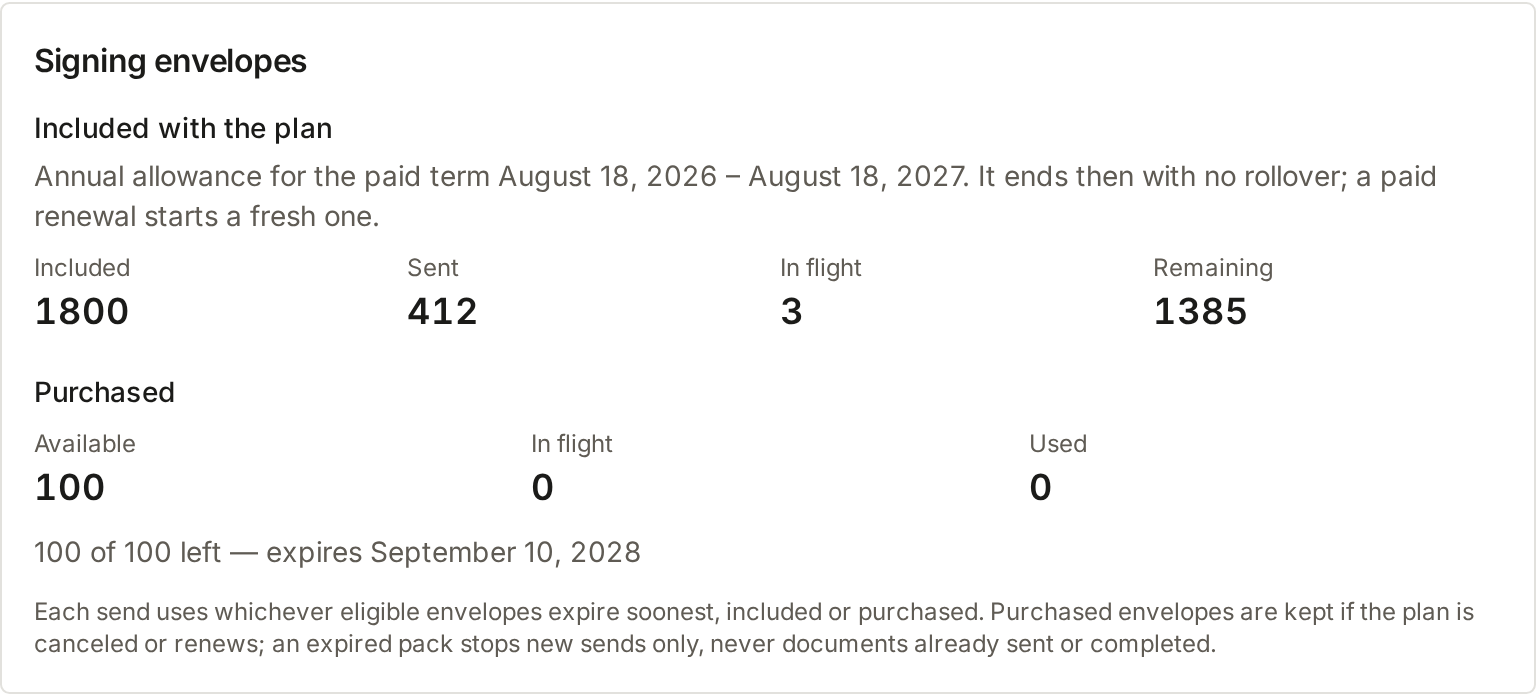
Signing envelopes has two parts:
- Included with the plan shows Included, Sent, In flight and Remaining, with the period:
- a monthly plan's window and its reset date;
- a trial allowance, which "does not reset";
- an annual pool: "Annual allowance for the paid term … It ends then with no rollover; a paid renewal starts a fresh one."
- Purchased shows Available, In flight and Used, then one line per pack, such as "100 of 100 left — expires" followed by the date. A pack can also read expired, refunded, or "on hold while a refund is processed".
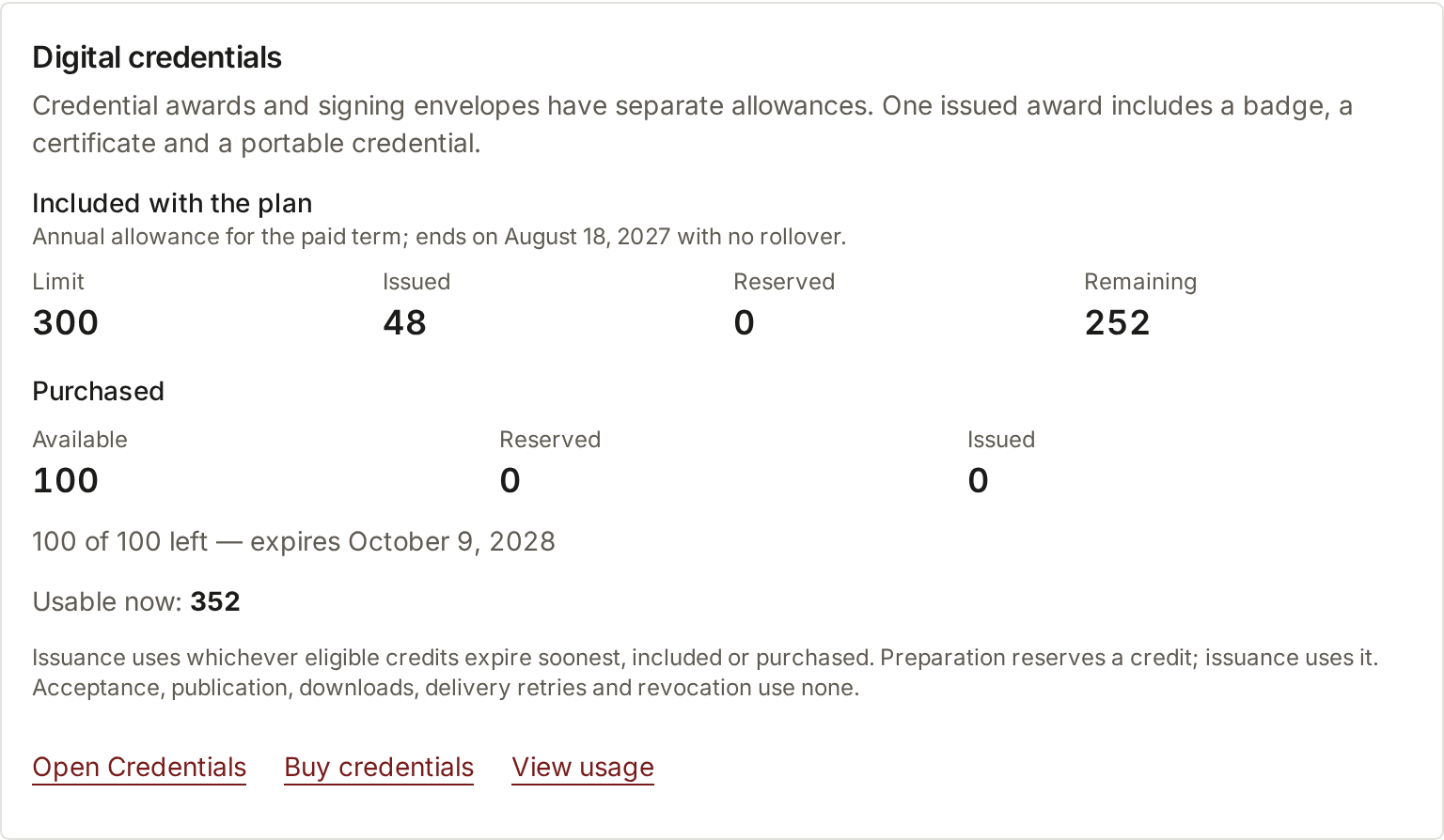
Digital credentials works the same way. The included allowance shows Limit, Issued, Reserved and Remaining. Purchased credits show Available, Reserved and Issued, followed by Usable now.
Each send and each award uses whichever eligible units expire soonest, whether included or purchased. Preparing an award reserves a credit, and issuing it uses that credit. Acceptance, publication, downloads, delivery retries and revocation use none.
If a balance can't be read, the page says so ("Credential usage is unavailable. Open Credentials or reload to check it.") instead of showing zero.
# Annual allowance pools
After a confirmed annual payment, an annual Mission or Impact subscription gets its whole year's allowance at once:
| Annual plan | Envelopes for the paid year | Credentials for the paid year |
|---|---|---|
| Mission | 1,800 | 300 |
| Impact | 9,000 | 1,200 |
The pool does not reset monthly. It ends at the end of the paid term with no rollover, and a paid renewal grants a fresh pool. A failed renewal grants nothing. If you cancel, you keep the allowance until the term ends. Purchased packs are kept separately, survive cancellation and renewal, and expire on their own dates. An annual upgrade adds the difference after payment and keeps your renewal date. A downgrade takes effect at renewal.
Monthly Mission keeps 150 envelopes and 25 credentials a month, and monthly Impact keeps 750 and 100. Community, trials and contract plans keep their own allowances.
# When you run out
Credentials. When nothing is left, the balance says "No credentials are left to issue. Existing awards stay available to recipients and can still be managed and revoked."
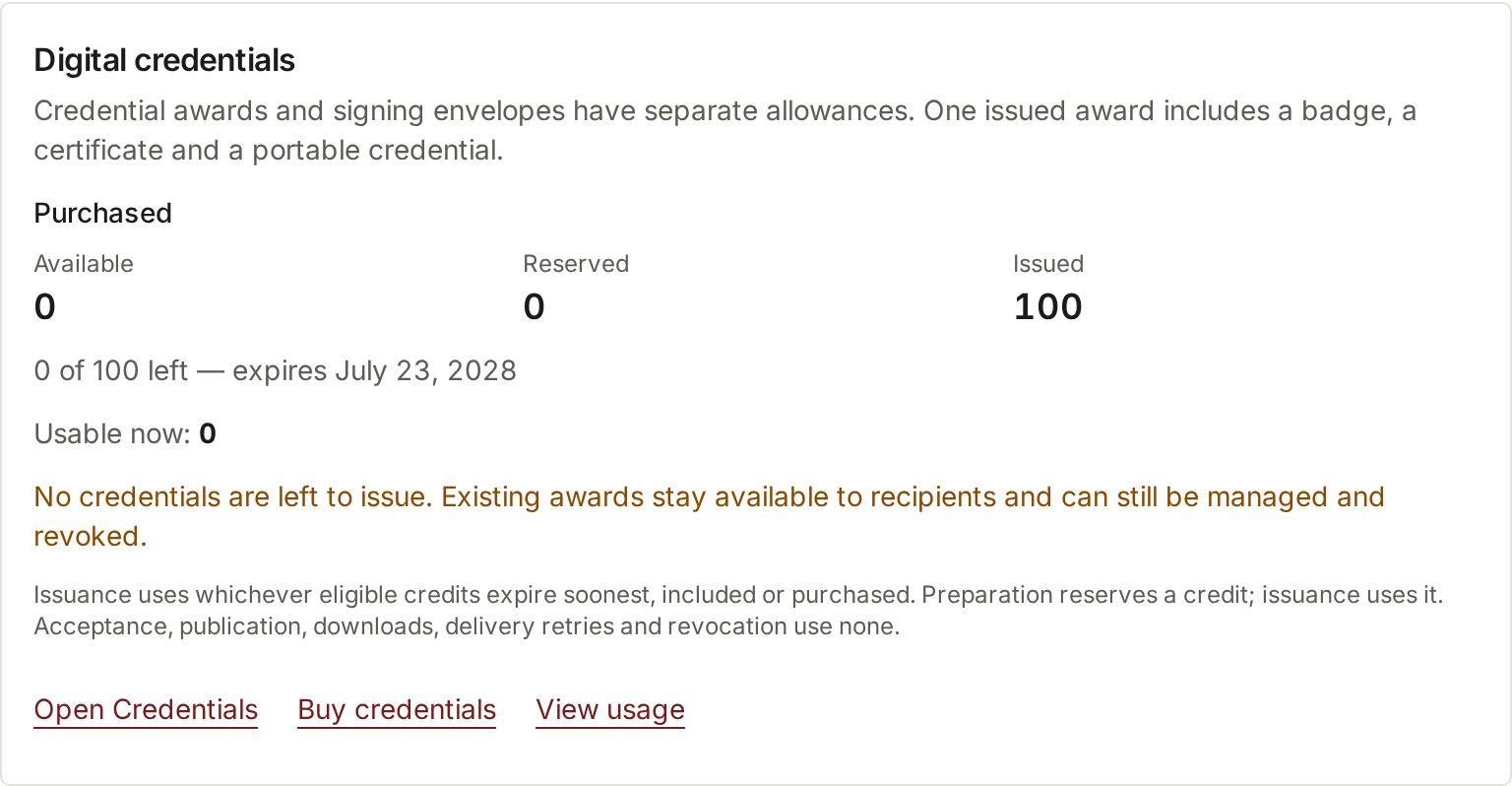
If an issuance batch is larger than your balance, nothing is issued and your recipient list is kept. The review says how many awards the batch needs and how many are available. It links to Buy credentials and says "no signing plan is needed to buy them." After buying, review the batch again. An automation rule that runs out issues nothing and buys nothing. The rule stays on.
Envelopes. If a send would go over your balance, your draft is saved and nothing is sent. The notice says what ran out:
| Notice | When | Link |
|---|---|---|
| Envelopes used up — "This paid year's included envelopes are used" | An annual pool is used up | View usage |
| Envelopes used up — "The purchased envelopes are used" | Purchased envelopes are used up and there is no allowance to reset | Billing and packs |
| Monthly envelope limit reached | A monthly allowance is used up; the notice gives its reset date | View usage |
Nothing is bought automatically, and buying a pack never sends a document for you; send it again yourself. An expired pack only stops new sends. Documents already sent can still be completed, and completed records stay available. Recipients are never blocked from completing.
# Standalone workspaces (packs without a plan)
A workspace can run on packs alone, with no signing plan. That includes a former subscriber that still has purchased credits. If the workspace never chose a plan, the badge next to its name says Credentials only, Envelope packs or Prepaid packs, depending on which spendable packs it has. A former subscriber's badge still says Canceled.

- Credential packs need no signing plan. Where credential issuing is enabled, the owner sets up the issuer, and owners and admins with a usable credit can create achievements and issue. A credential pack never gives signing access.
- Envelope packs without a plan give one designated sender basic signing. That person can prepare, send, track, remind, download and view audit history, within the Mission plan's template and storage limits. Other members keep access to existing documents but can't send. Team features, bulk sending, public forms and API sending return with a plan. Purchased envelopes can't be spent through an API token.
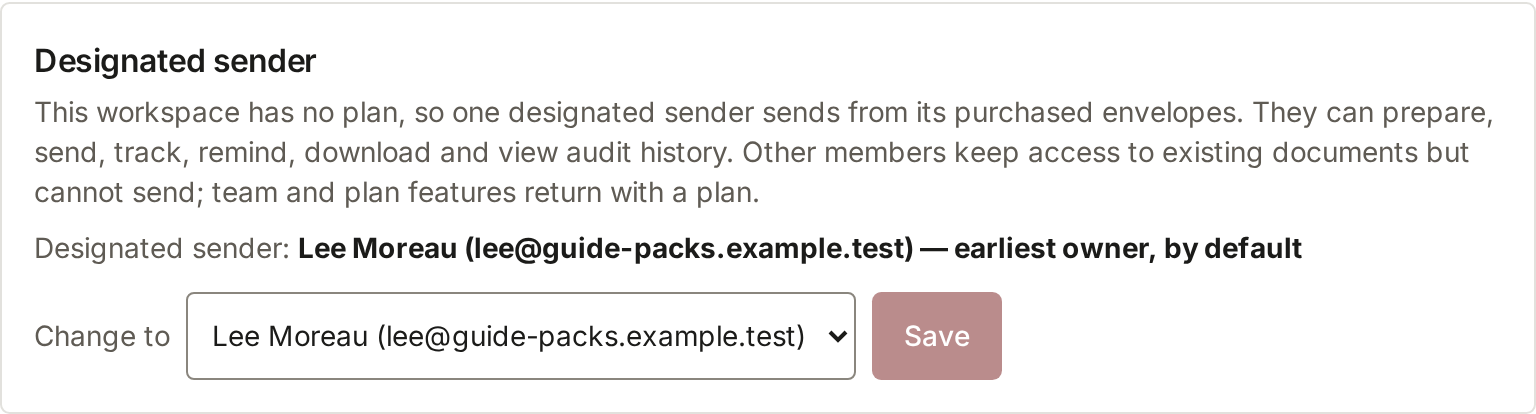
The designated sender is the earliest owner by default. An owner or admin with billing access can change it under Designated sender in Billing. If the workspace's storage is over its limit, everything stays viewable and exportable, and only new uploads are blocked. Nothing is deleted automatically.
# Hosted verification: ten years from issuance
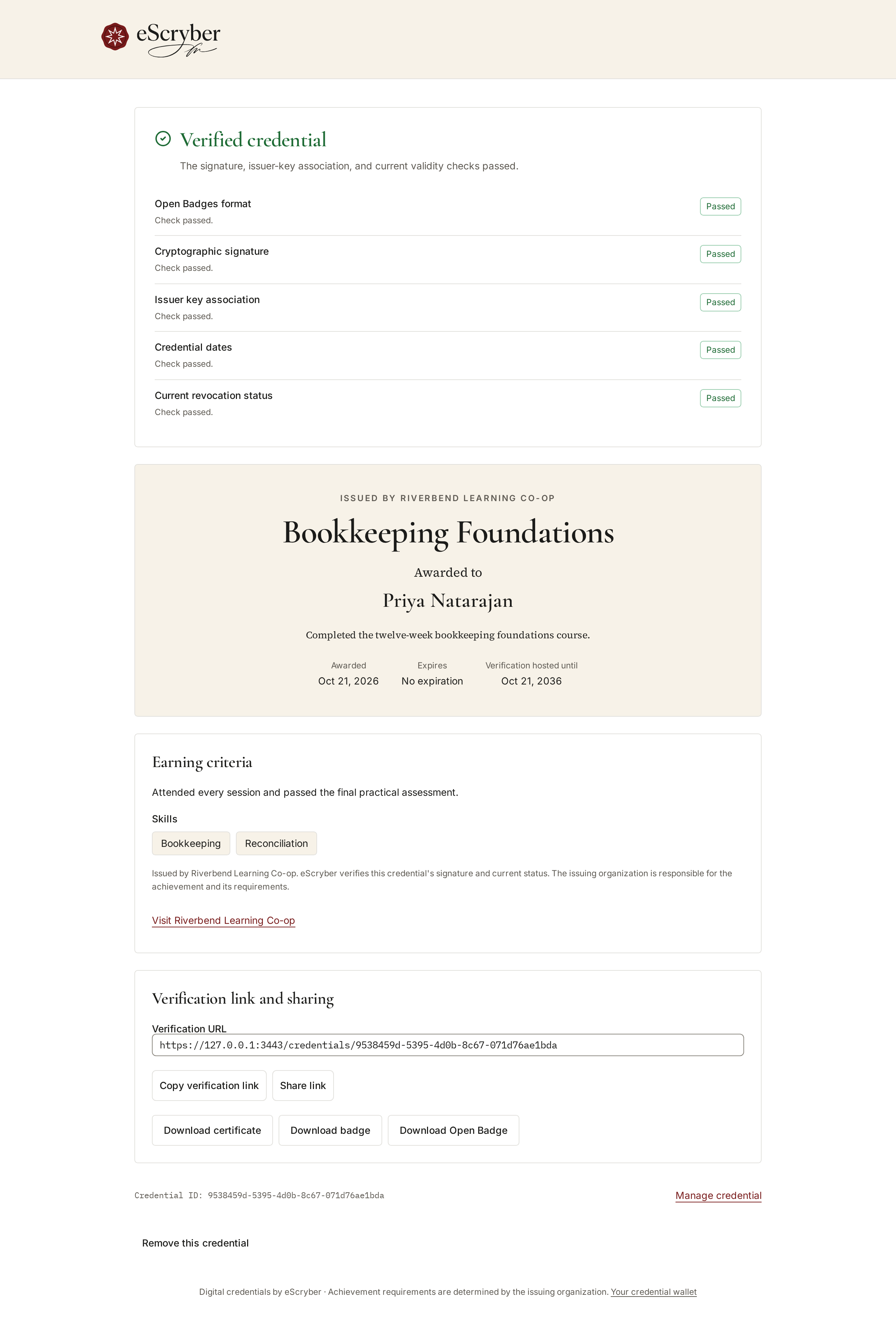
Each credential's public verification page, and its recipient's badge and certificate, stay hosted for ten years from issuance on every plan. That holds even if the issuer cancels its plan or its credits expire. A revoked credential shows as revoked. The public page shows the end date as "Verification hosted until" followed by the date; the recipient's wallet says "Verification, badge and certificate hosted until" followed by the date.
On a phone:

# Removing your own credential (recipients)
If a credential was issued to you, you can have it removed entirely:
On the credential's public page, choose Remove this credential. The button is on the public page, so it is only there while the credential is published.
Enter the email address it was issued to, then choose Send confirmation link. The page gives the same answer whatever address you enter. Only the issued-to address gets the link, and the link expires in 24 hours.
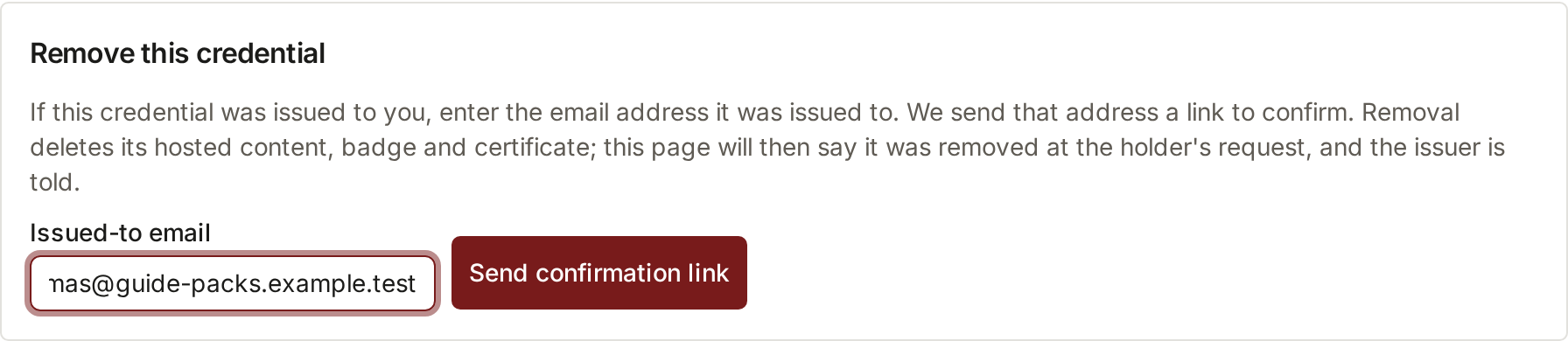
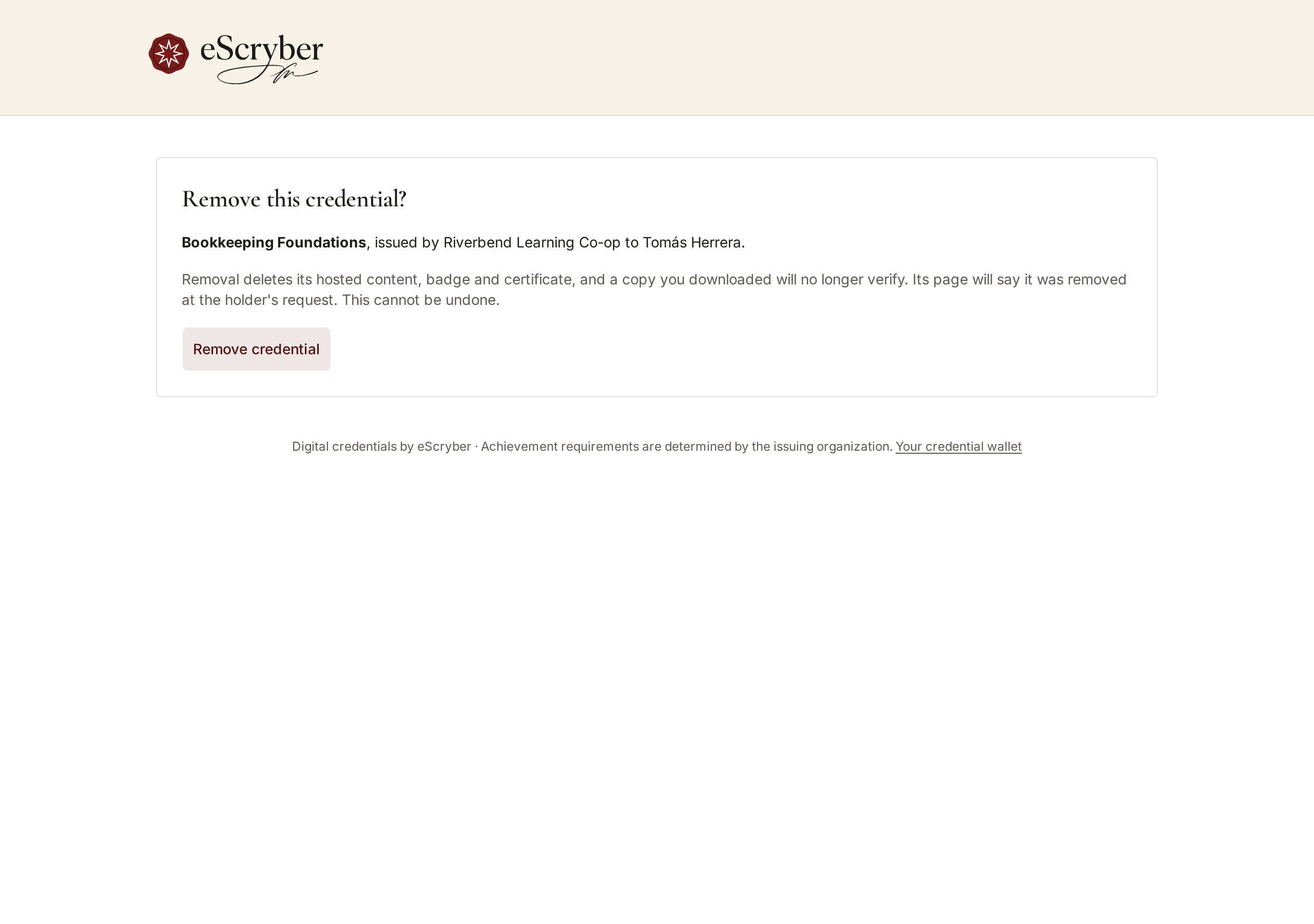
Open the link and choose Remove credential. This deletes the credential's hosted content, badge and certificate, and a copy you downloaded will no longer verify. It can't be undone.
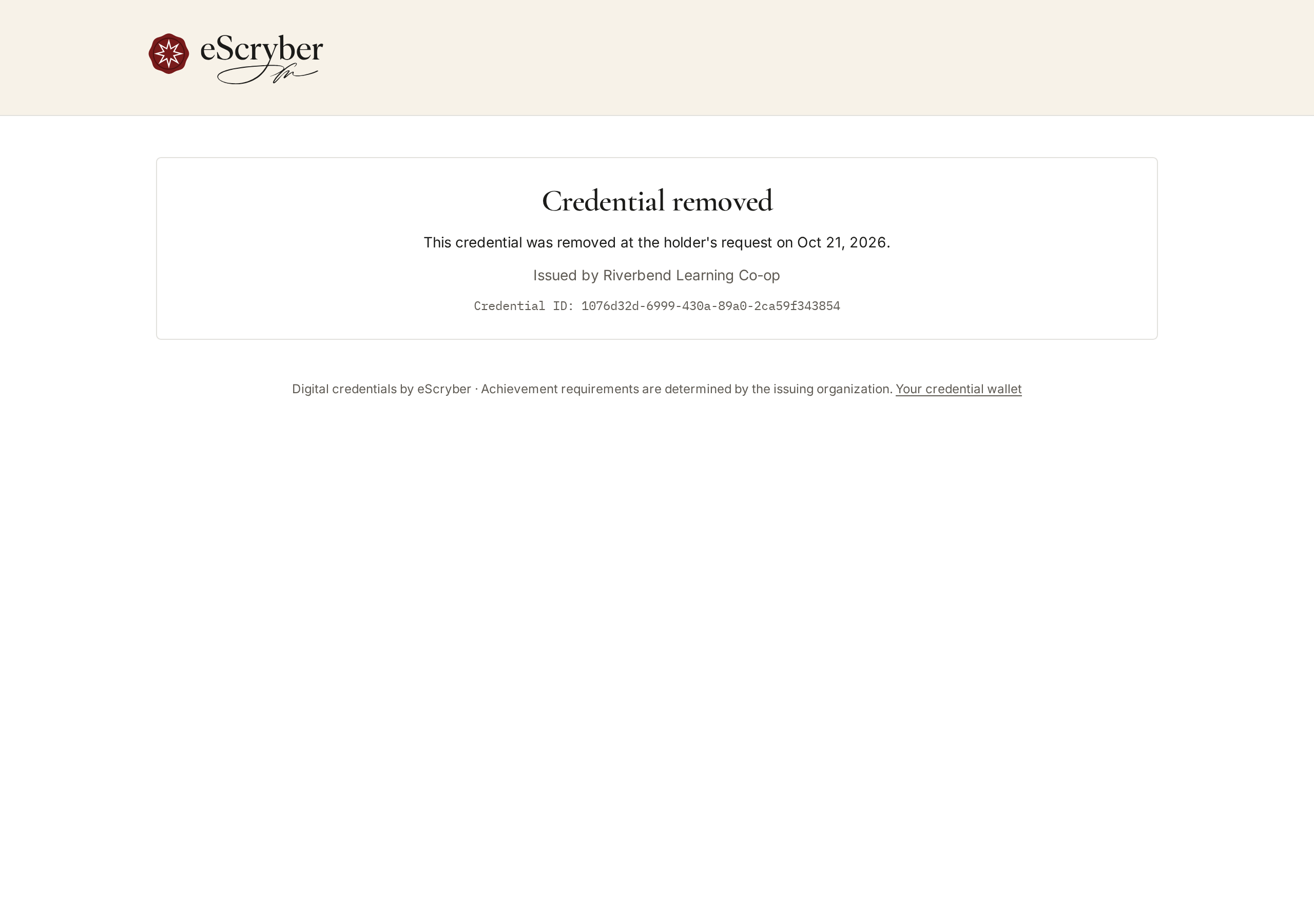
The issuer is told. The page then says the credential was removed at the holder's request, with the date and credential ID, but nothing about you.
To take a credential off public display without deleting it, open it from your credential link and choose Make credential private instead.
# Closing a workspace
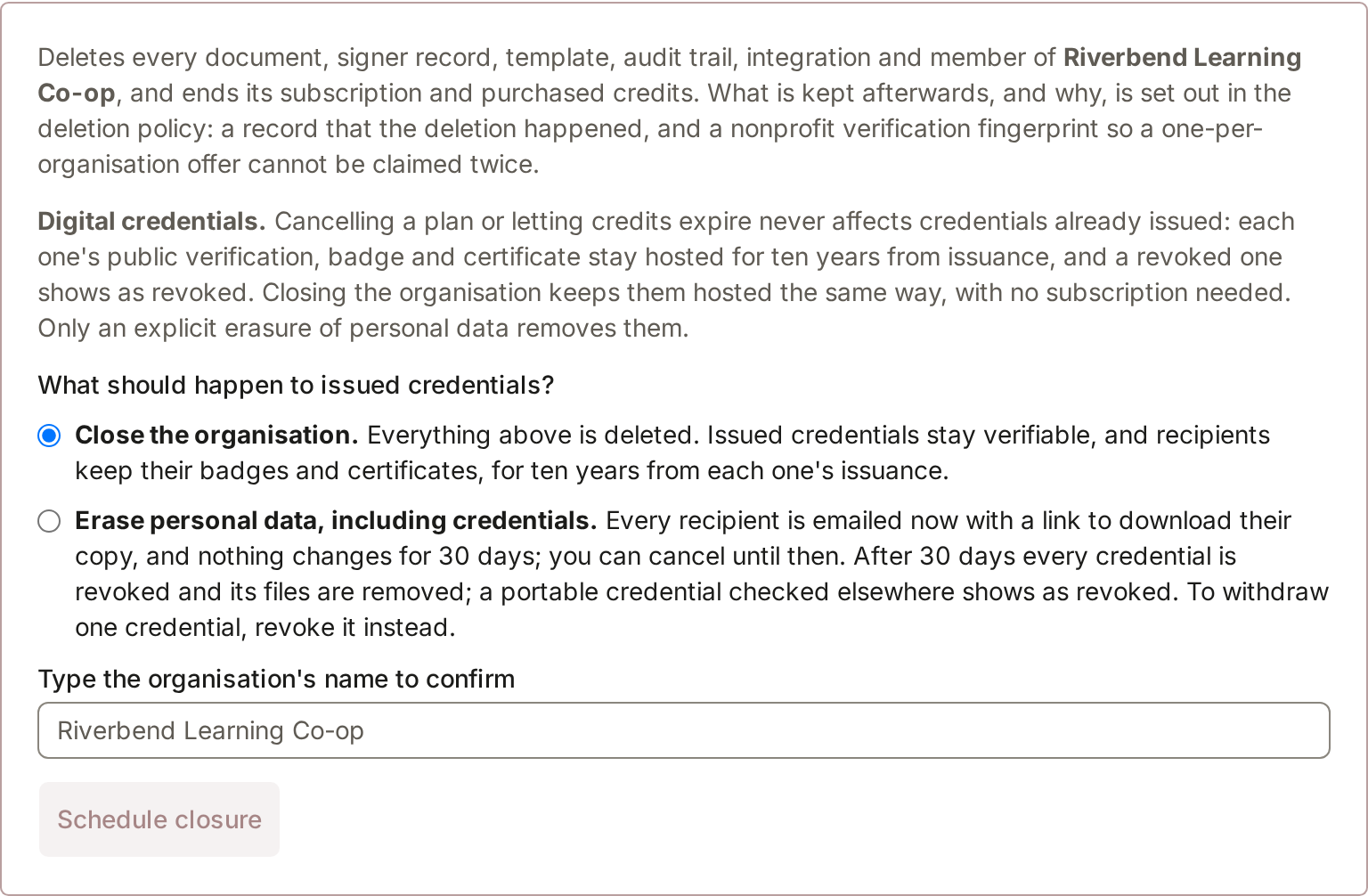
Under Settings → Your data, an owner chooses what should happen to issued credentials. Closing is preselected:
Cancel any subscription in Billing first; a deletion request is refused while the subscription would still renew. A workspace under a legal hold can't be deleted.
- Close the organisation. Documents, signer records, templates, audit trails, integrations and members are deleted, and purchased credits end. Issued credentials stay verifiable, and recipients keep their badges and certificates, for ten years from each one's issuance. No subscription is needed for that.
- Erase personal data, including credentials. You have to choose this by name. Every recipient is emailed straight away with a link to download their copy, and nothing changes for 30 days. You can cancel until then. After 30 days, every credential is revoked and its files are removed. A portable credential checked elsewhere shows as revoked.
To withdraw a single credential, revoke it instead. Type the organisation's name to confirm, then choose Schedule closure or Schedule erasure. Closure runs after an export window and erasure after the 30-day notice period. Until it starts, an owner can cancel with Cancel deletion. See Downloads, exports and closing a workspace for exporting your data first.