



# Signing a document
You don't need a eScryber account. The sender emailed you a link; clicking it is the only thing you have to do to start.
# 1. Open the link
The email is from the sender (their name and reply-to address) but the layout is eScryber's. Click Review & Sign. The link expires by default after seven days, so don't sit on it for weeks.
You'll land on the signing page. The header shows the sender's organisation — same branding you saw on the email.
Desktop view:
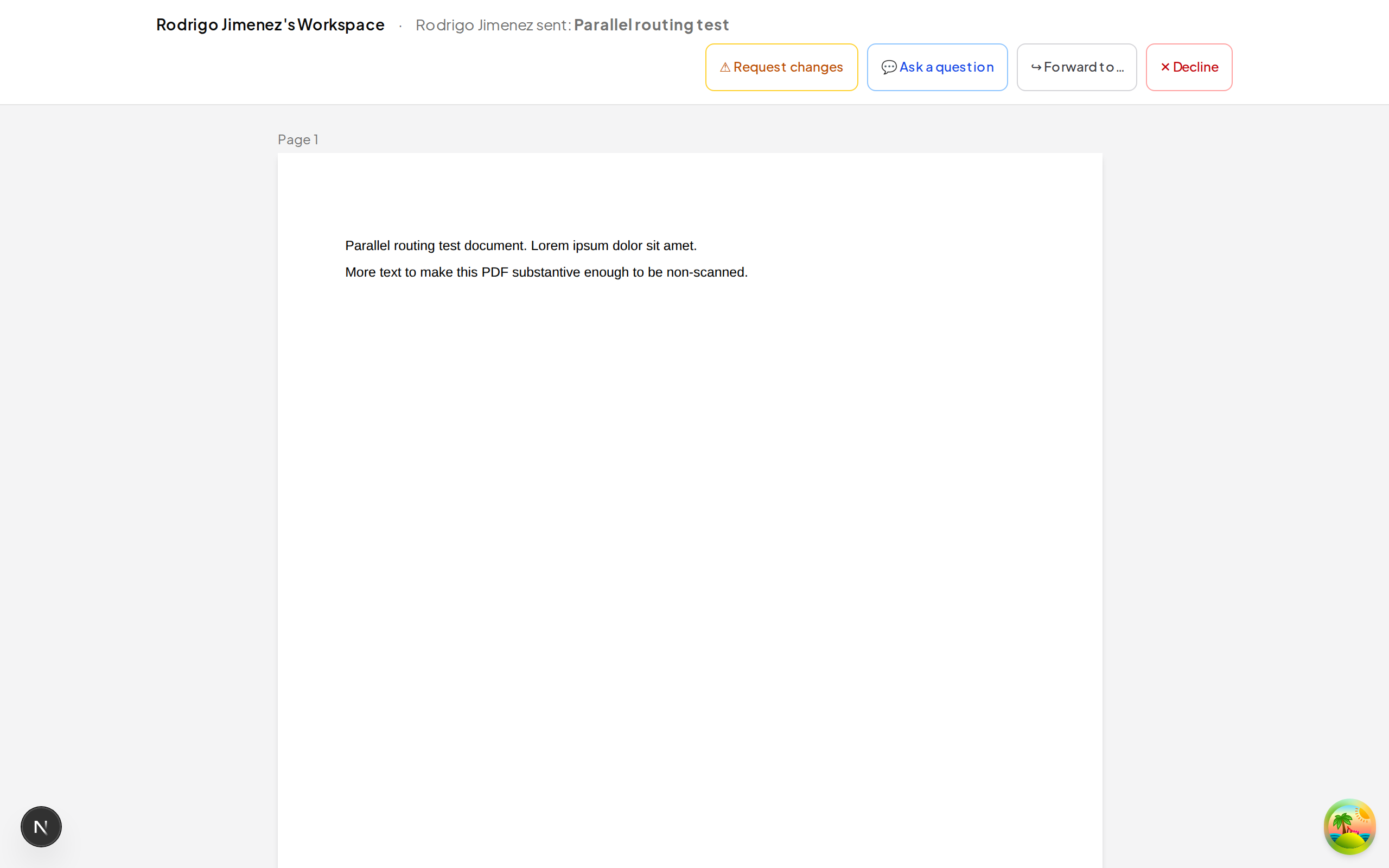
On a phone:
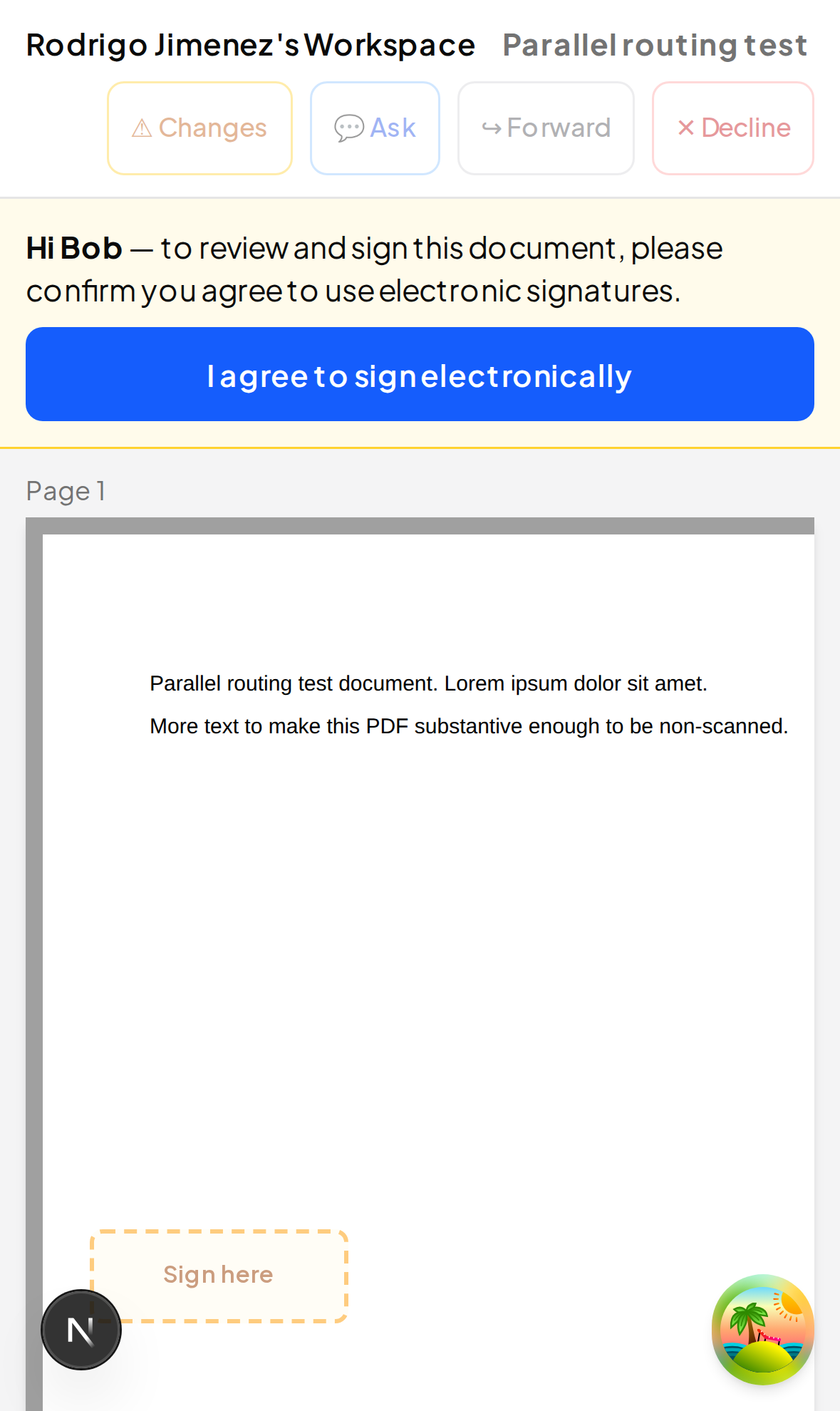
The grey overlay you see is the e-signature consent gate. Until you check the box, the fields are read-only. The header on phones shows the same Changes / Ask / Forward / Decline actions, just wrapped to a second row.
Depending on how the sender's organization is set up, your phone view shows the document in one of two ways:
- Reflowed inline view (default when AI reflow is enabled for the sender). The contract prose flows naturally to your screen width and each fillable spot appears as a small inline button right inside the text — "Sign here", "Date", or a labeled placeholder. Tap any one to fill it.
- Overlay view (the fallback). The PDF renders at viewport width with each field drawn as a colored rectangle floating above the page. Tap the rectangle to fill it.
Both views save your input the same way and end up with an identical signed PDF. There's a small View as PDF / View as mobile toggle at the bottom of the page if you want to compare.
# 2. Agree to the e-sign disclosure
Read the disclosure and check the box. You're acknowledging that an electronic signature has the same legal effect as a hand-written one (this is required for ESIGN/UETA compliance in the United States, and similar regimes elsewhere). The exact text you're consenting to is shown in the modal above the checkbox; key terms:
- The agreement was offered to you electronically and you can choose to use a hand-written one instead by replying to the sender.
- You're confirming you can access PDFs and view the document on your current device.
- A signed copy will be emailed to you and saved server-side; you can request paper copies from the sender.
- You can withdraw consent at any time before clicking Finish by replying to the sender — once finished, the audit trail is sealed and the signed PDF is final.
For the full text, see the U.S. ESIGN Act (15 U.S.C. § 7001) and the Uniform Electronic Transactions Act. Outside the US, your local equivalent (eIDAS in the EU, the Electronic Communications Act in the UK, etc.) governs.
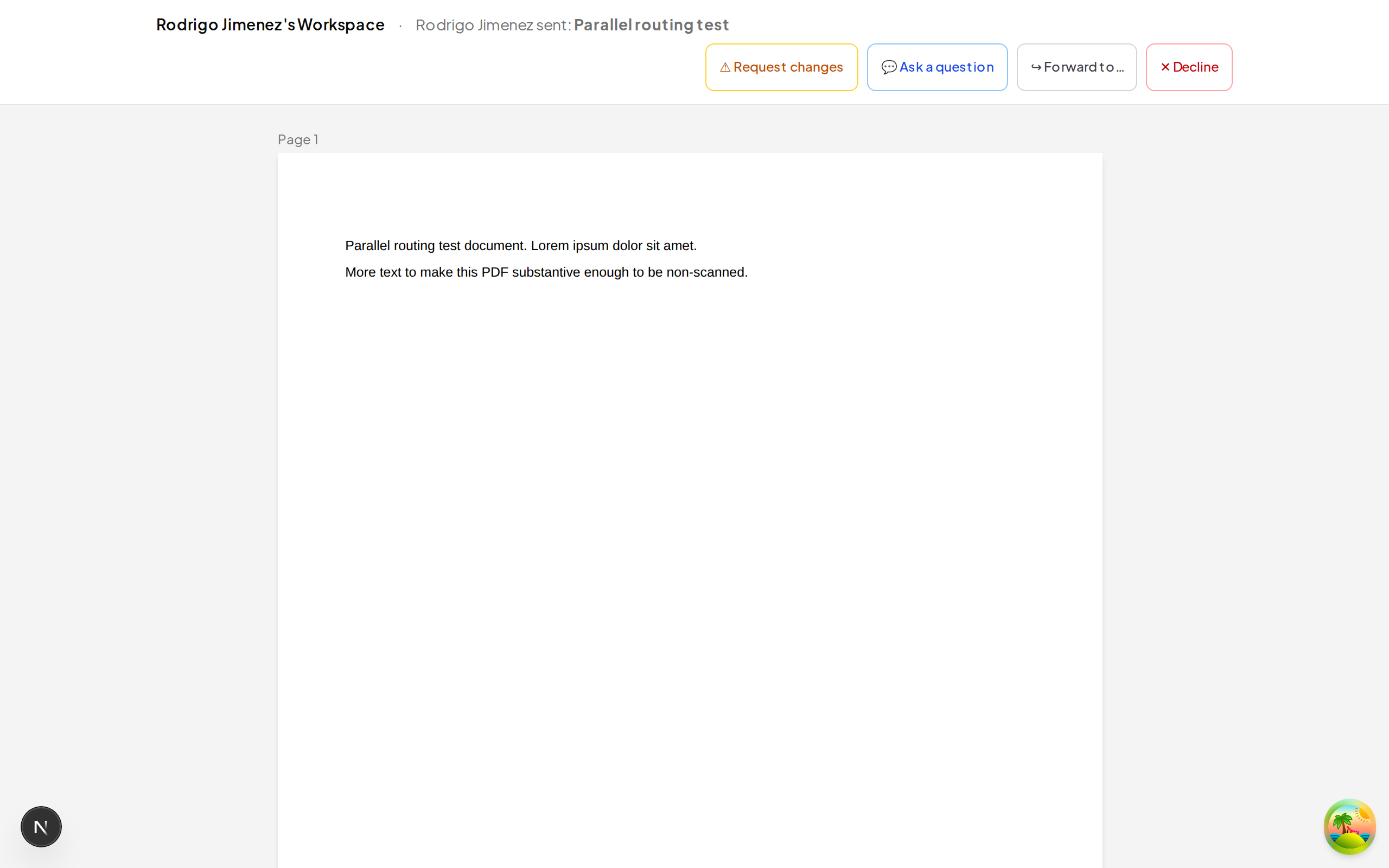
Desktop view:
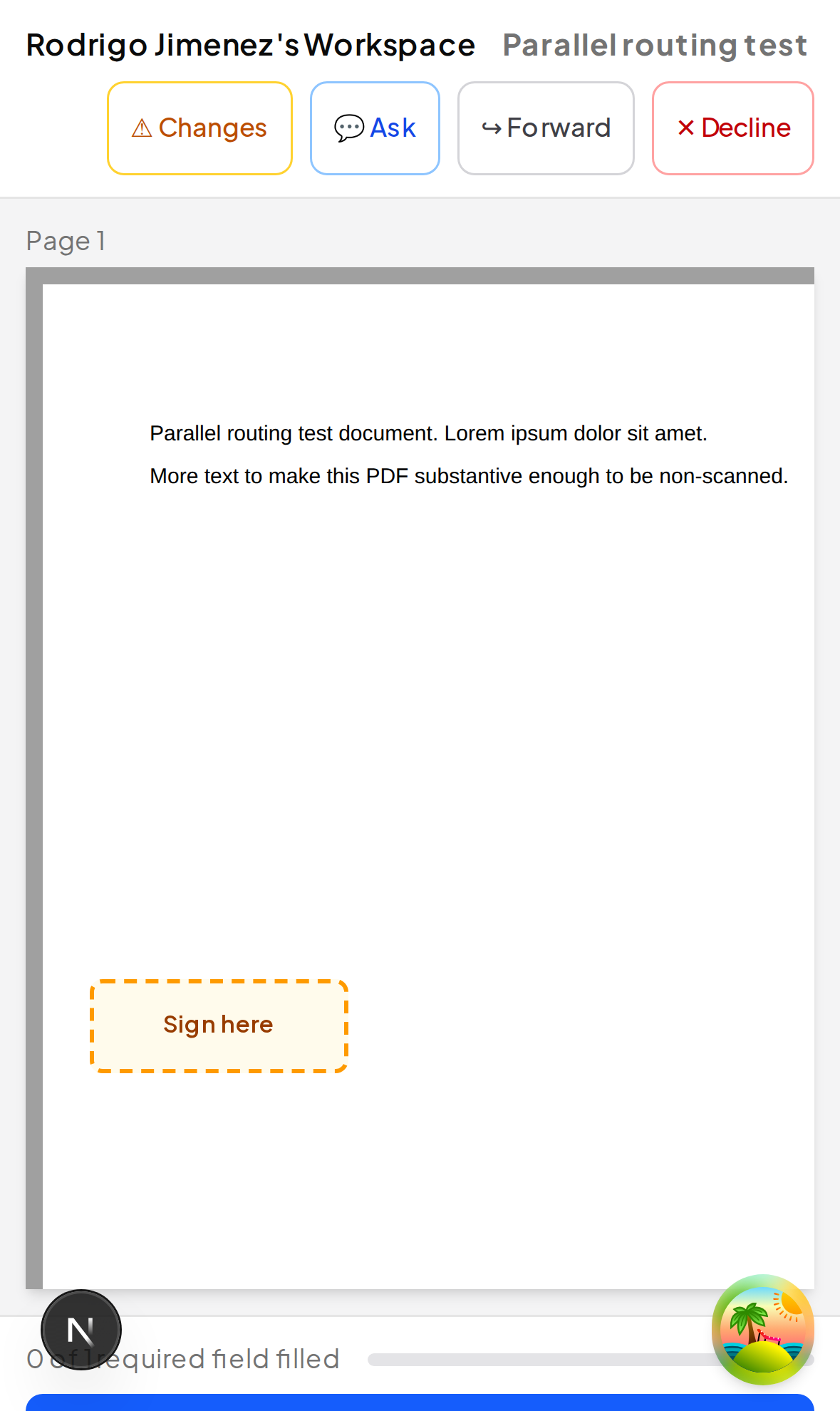
On a phone:
Once you've consented:
- The fields you need to fill are highlighted with a dashed amber outline.
- Optional fields have a dashed grey outline.
- Anything filled in by the sender ahead of time has a solid teal border — you can see it but can't change it.
# 3. Click each field and fill it
Click a signature field (the one with the ✍ icon). A modal opens with three tabs:
- Saved — appears if you've signed at least one document with this email before. One click reuses your previous signature.
- Draw — sketch with your finger or trackpad. Mobile-friendly.
- Type — type your name; eScryber renders it in a script font.
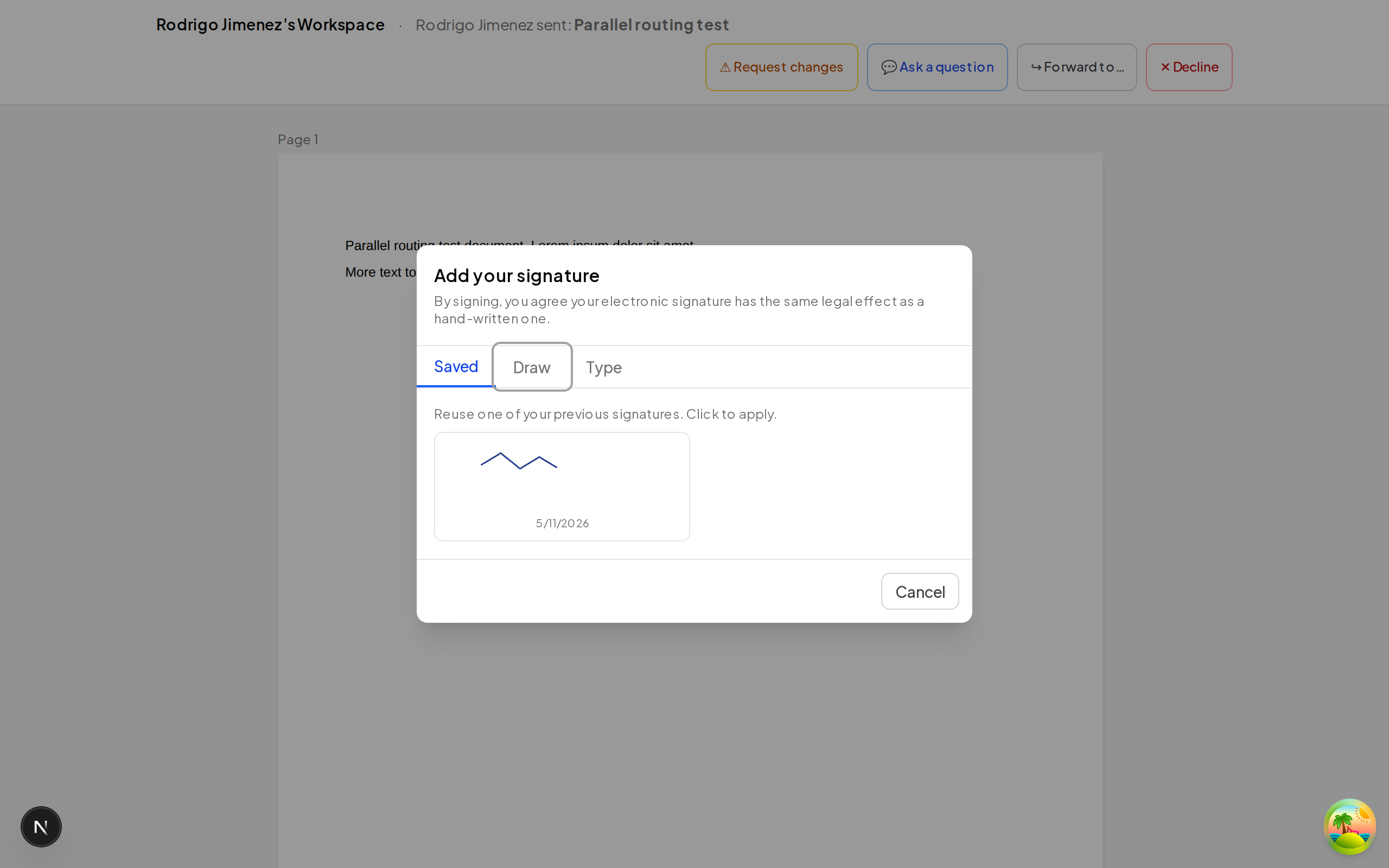
Draw, type, or pick a saved signature, then click Save.
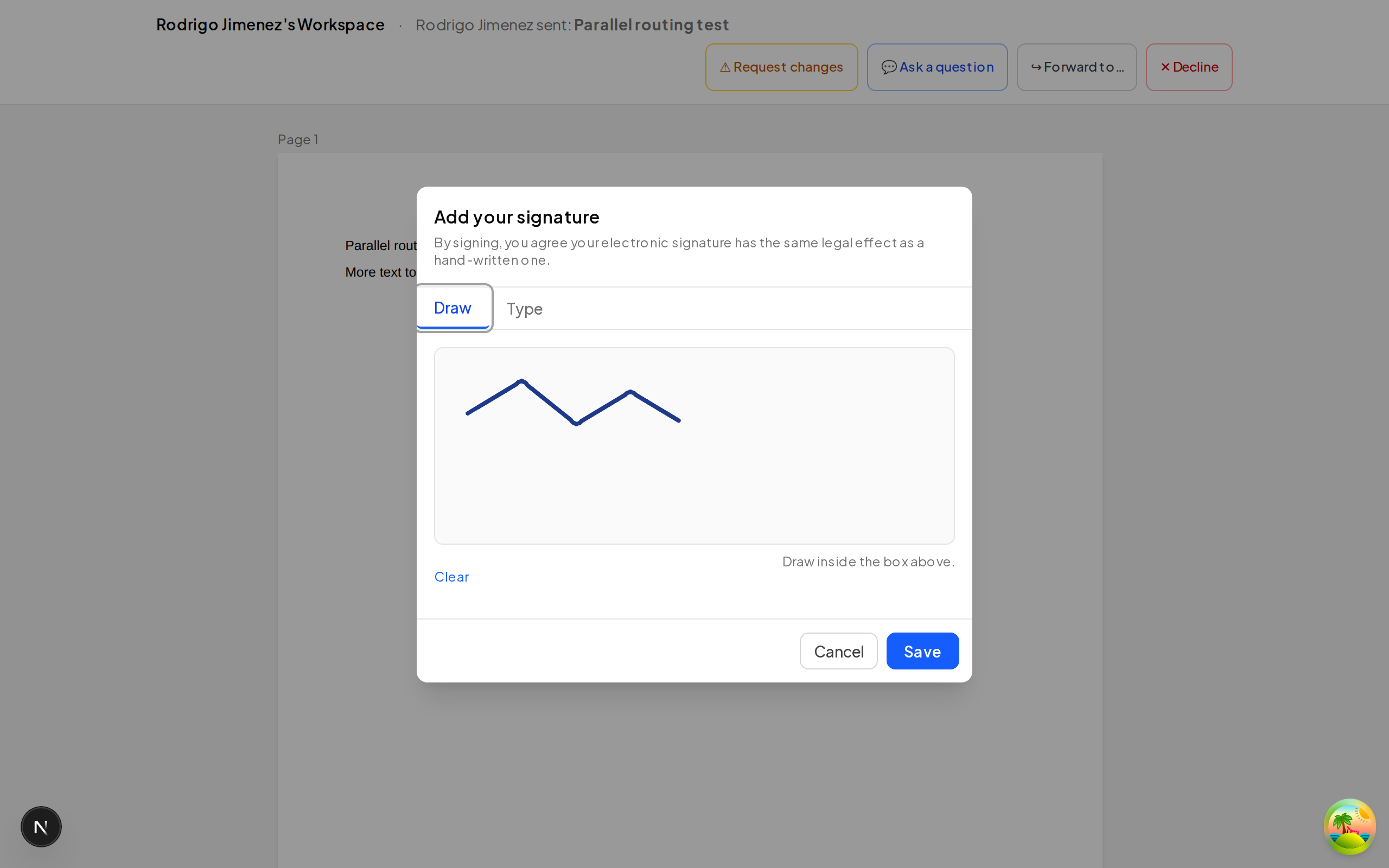
The signature appears at full size in the field on the page.
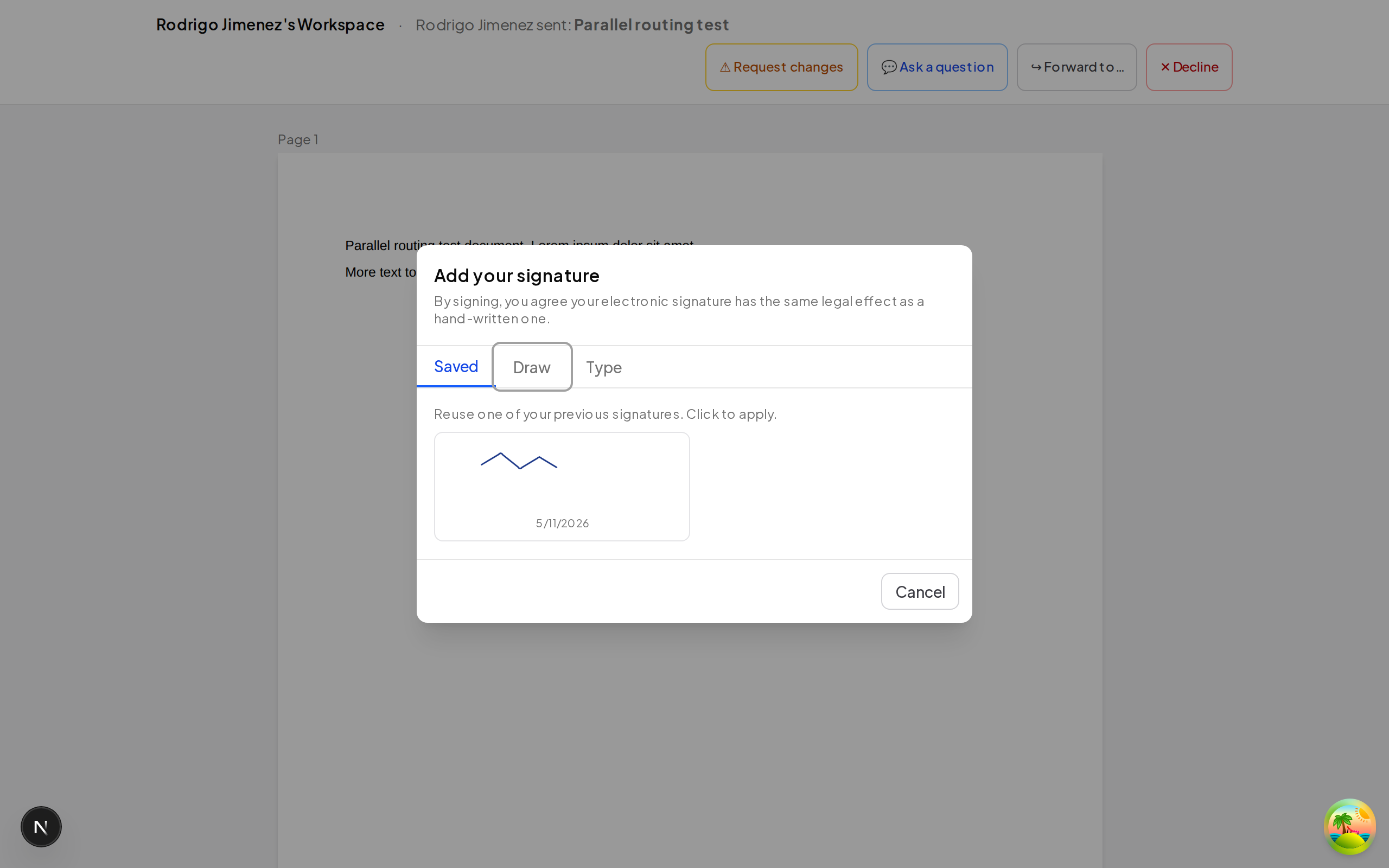
Repeat for every required field. Date pickers, text inputs, checkboxes, and dropdowns all open similar small modals.
A few field types have extra behavior:
- Text fields with validation — some TEXT fields enforce a format (e.g. postal code, employee ID). If your entry doesn't match, you'll see a hint explaining what's expected. Fix the value until the hint disappears before moving on.
- Attachment fields — click the paperclip icon to upload a supporting file (PDF, PNG, JPEG, GIF, or WebP). Your upload is stored securely and its fingerprint is included in the audit trail.
- Conditional fields — some fields appear or disappear based on what you pick in a checkbox or dropdown. This is normal — the sender designed the form that way to skip irrelevant sections.
The auto-navigator at the bottom of the screen keeps track of where you are. "Start →", "Next: …", and "Finish →" scroll to and highlight each required field in turn so you never miss one. Tap a button to jump straight to the next unfilled field.
# 4. Finish
The sticky footer at the bottom of the page tracks your progress: "X of Y required fields filled". The Finish → button enables once all required fields have a value.
Desktop view:
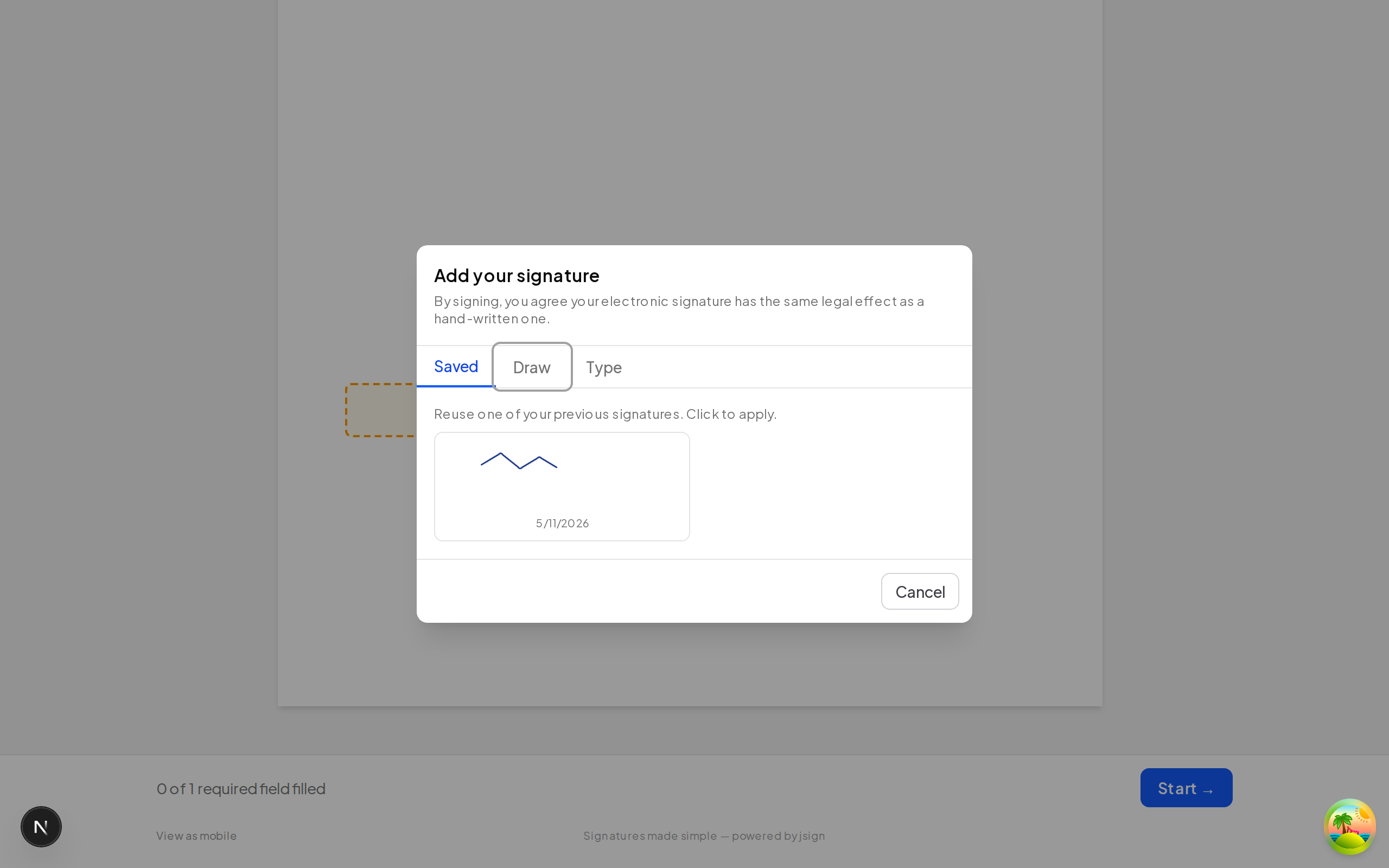
On a phone:
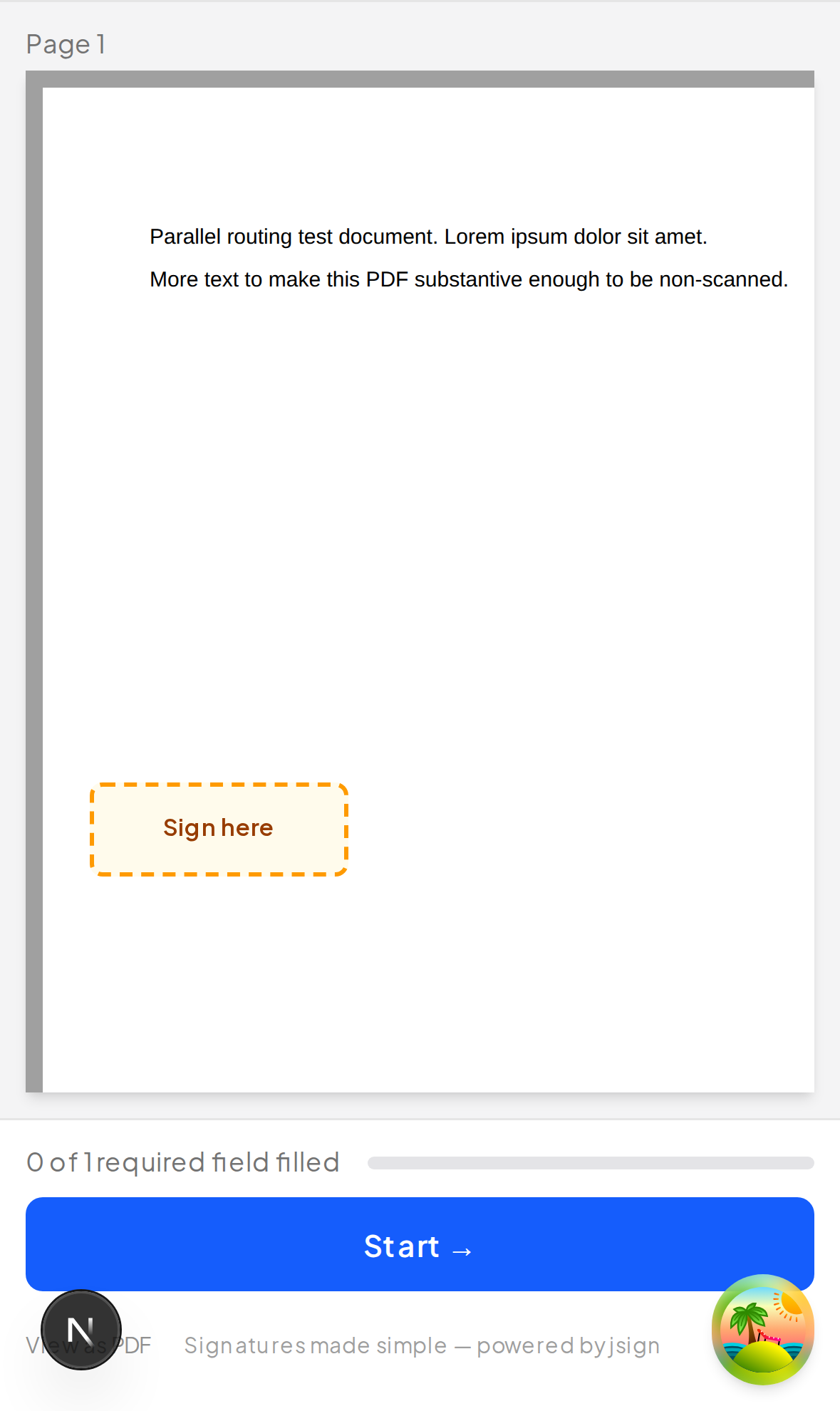
Click Finish. eScryber:
- Stamps your signature(s) into the PDF on the server.
- Records every field, your IP, and the signed-content hash (taken before the certificate pages and seal are added) on a tamper-evident audit log.
- (If the sender's instance has it enabled) cryptographically seals the finished PDF with a detached PKCS#7 signature under the operator's certificate. Whether your PDF reader shows the seal as trusted depends on that reader's own trust settings; the certificate of completion is the record of what was applied.
- Sends you to the All done page where you can download the signed PDF.
# Things you can do besides finishing
The header bar at the top of every signing page gives you four options at any time. On a phone the four buttons wrap to a second row directly under the document title.
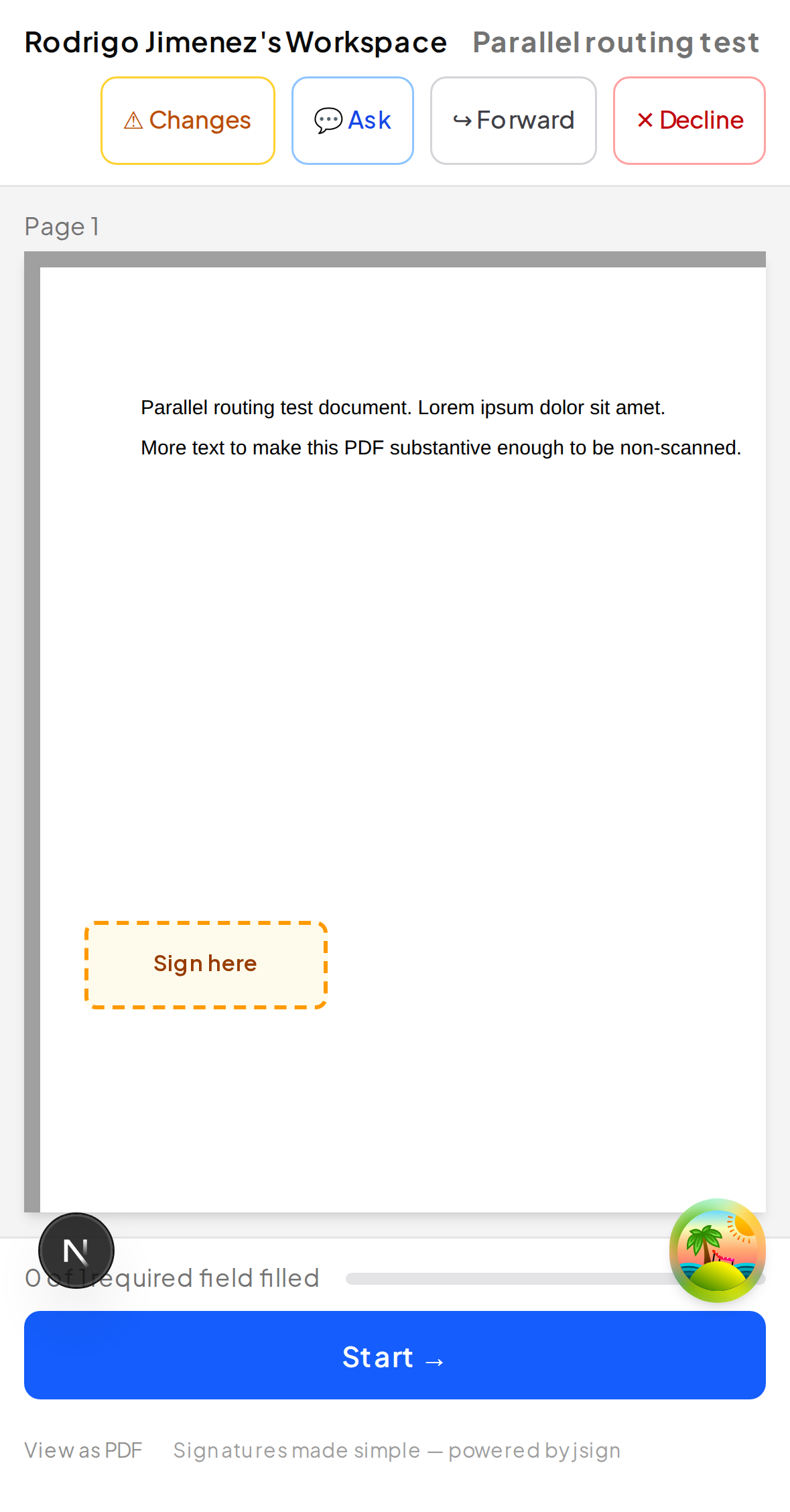
- Ask — post a question or clarification to the sender without rejecting the document. The sender sees it on their document detail page and can resolve it or reply by email. You can still finish signing after asking — sending a question doesn't pause the document.
- Request changes — the sender gets a kickback message and can edit + resend without you having to start over.
- Forward — delegate your signing slot to someone else. Enter their name, email, and an optional reason. Your original link becomes invalid immediately; the new signer gets a fresh email. The full chain is recorded in the audit trail. Senders can disable this per document — if the Forward button isn't shown on your signing page, the sender has chosen not to allow delegation for this particular document. Reach out to them directly to re-route the signature.
- Decline — close the document permanently with a reason. The sender is notified.
Your filled values are saved as you go. Closing the tab and reopening the link picks up where you left off, until the link expires.
# After everyone signs
When the last recipient finishes the document, eScryber emails everyone — every signer plus the sender — a copy of the fully-signed PDF.
- Subject: Signed: .
- The button in the email opens the same "All done" page you saw after finishing, except the link is good for 30 days instead of the original 7-day signing window. Use it to grab the PDF for your records.
- The sender gets a separate notification with a list of every signer and a link to the dashboard view (which also includes the audit certificate).
If you sign early in a multi-signer chain, this email is what tells you the document has actually completed — until then, the document isn't legally final and the version you'd see on the link is missing the other signatures. Don't archive the file from the per-signature confirmation page; wait for the completion email.
If you don't see the email after the last signer finishes, check your spam folder. The from-address matches whatever the sender's organisation configured (usually their own domain), so providers sometimes route the second message differently than the first.
# What if the link doesn't work?
| Message | Why | What to do |
|---|---|---|
| "This signing link has expired" | Past the 7-day default expiry | Reply to the sender's email and ask for a new link |
| "This document was canceled by the sender" | Sender voided it | Talk to the sender |
| "This signing link is no longer valid" | You forwarded your slot to someone else and that link was issued to them | Check your email for the forwarding confirmation, or contact the sender |
| "Invalid or expired signing link" | Wrong / corrupted URL | Use the original email link, not a copy-pasted snippet |
If the page loads but won't let you click anything, your browser may be blocking JavaScript — eScryber needs JS for the PDF rendering and field overlays. Try a fresh browser tab, or a different browser, before pinging support.