



# Sender quick start
By the end of this guide you'll have uploaded a PDF, added a recipient, placed a signature field, and clicked Send. The recipient will get an email with a magic link to sign — no account required on their end.
It takes about two minutes the first time.
# 1. Sign in
Open eScryber at the sign-in address your administrator gave you and enter your credentials.
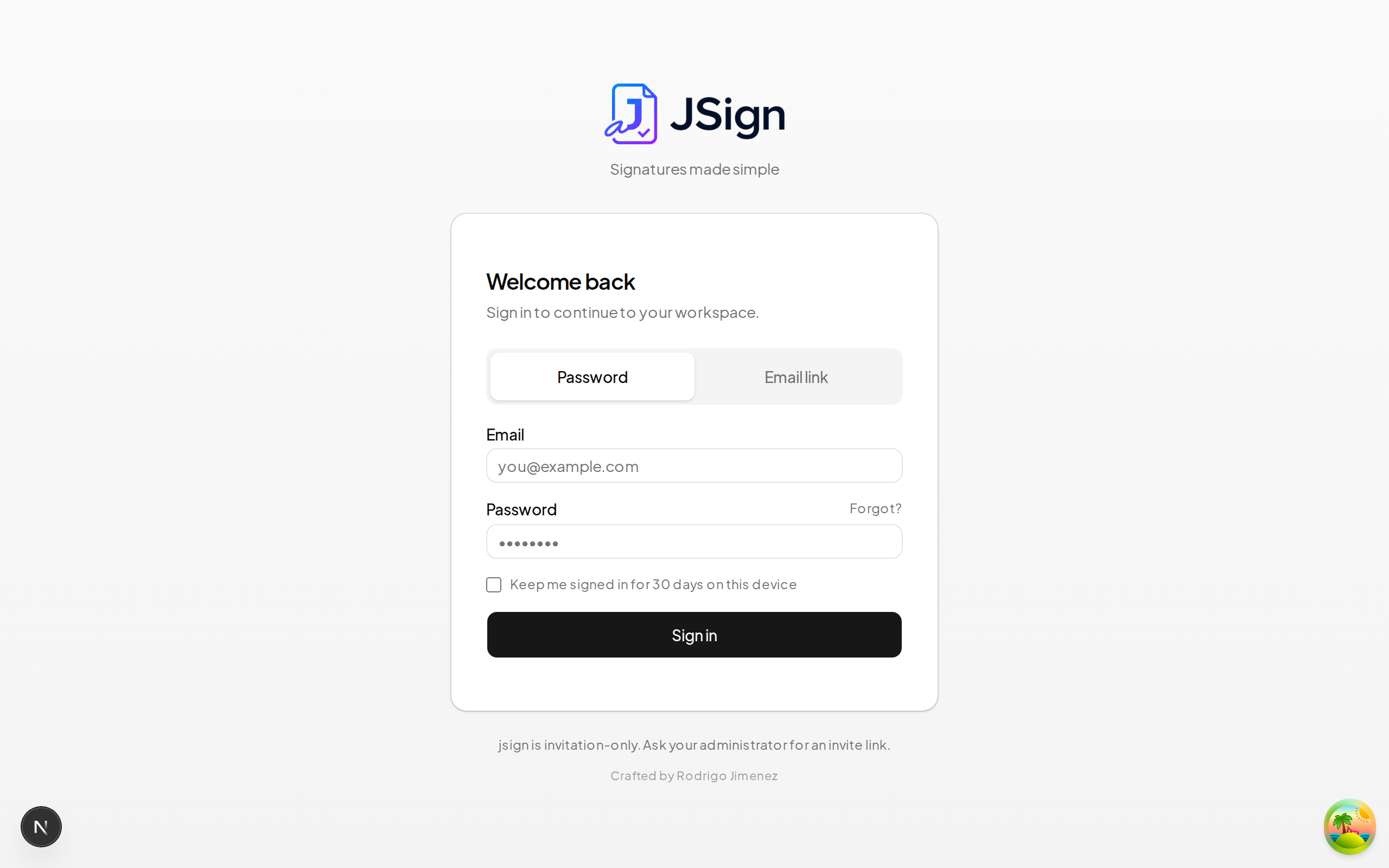
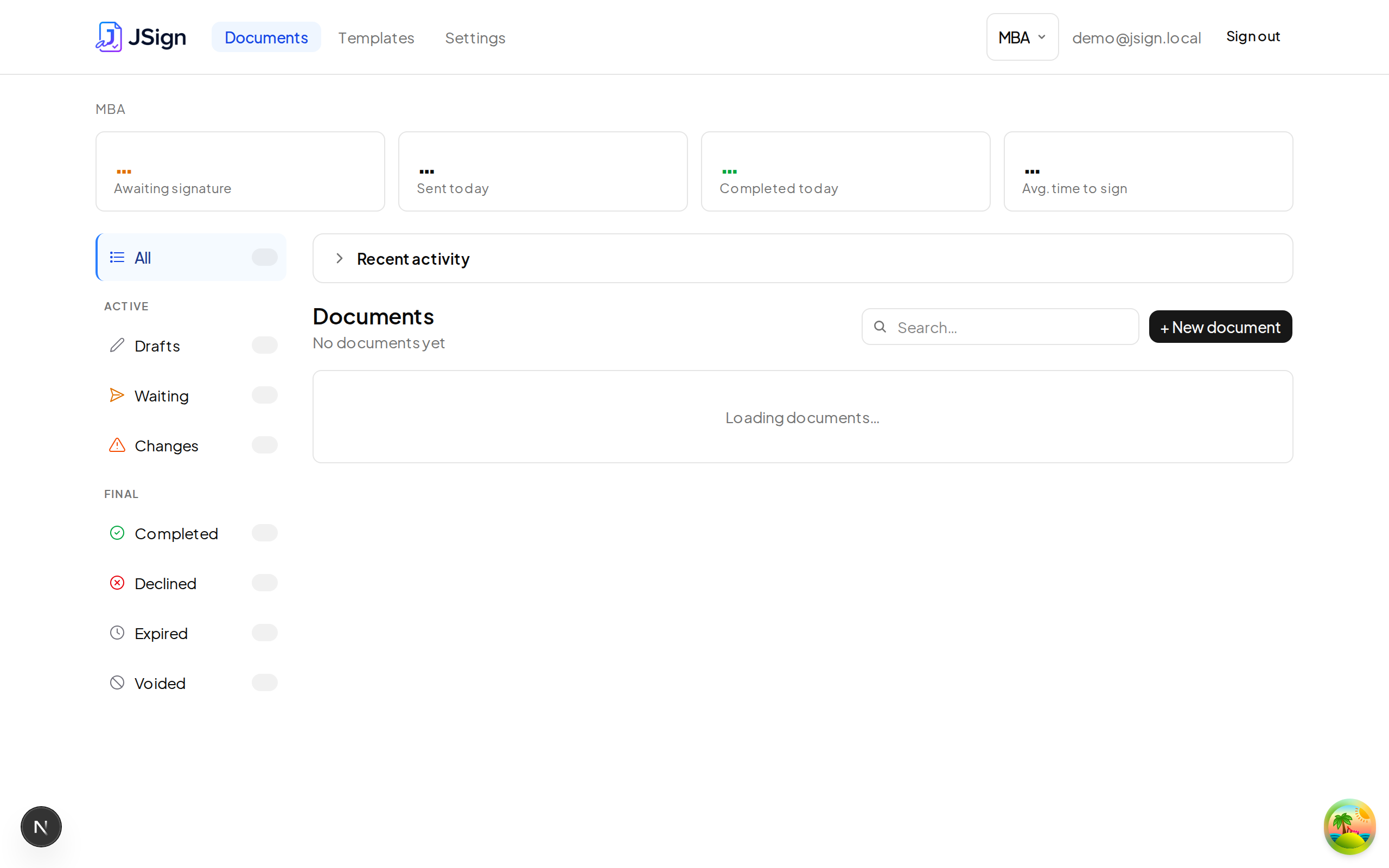
After signing in you land on the Documents dashboard.
Desktop view:
On a phone:
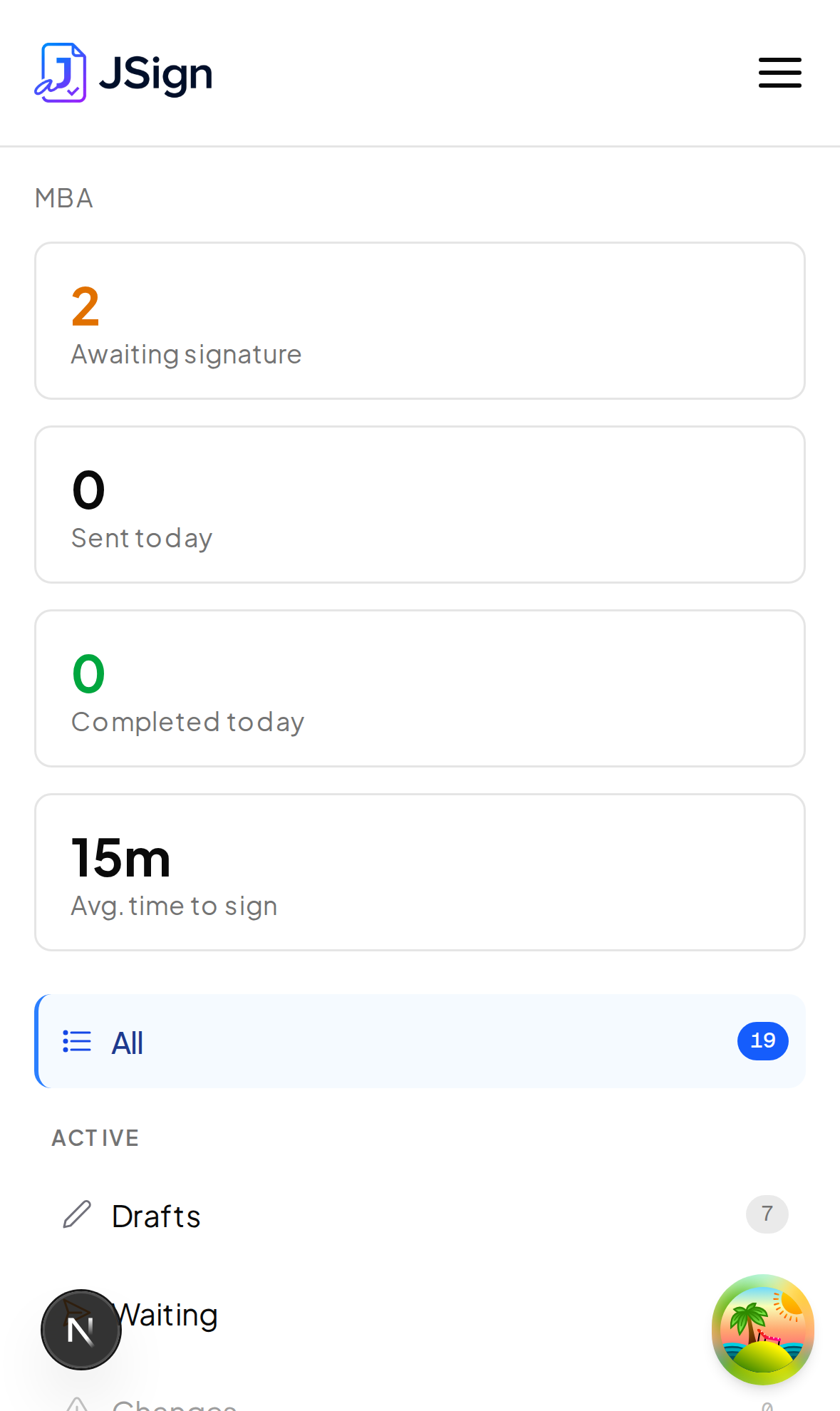
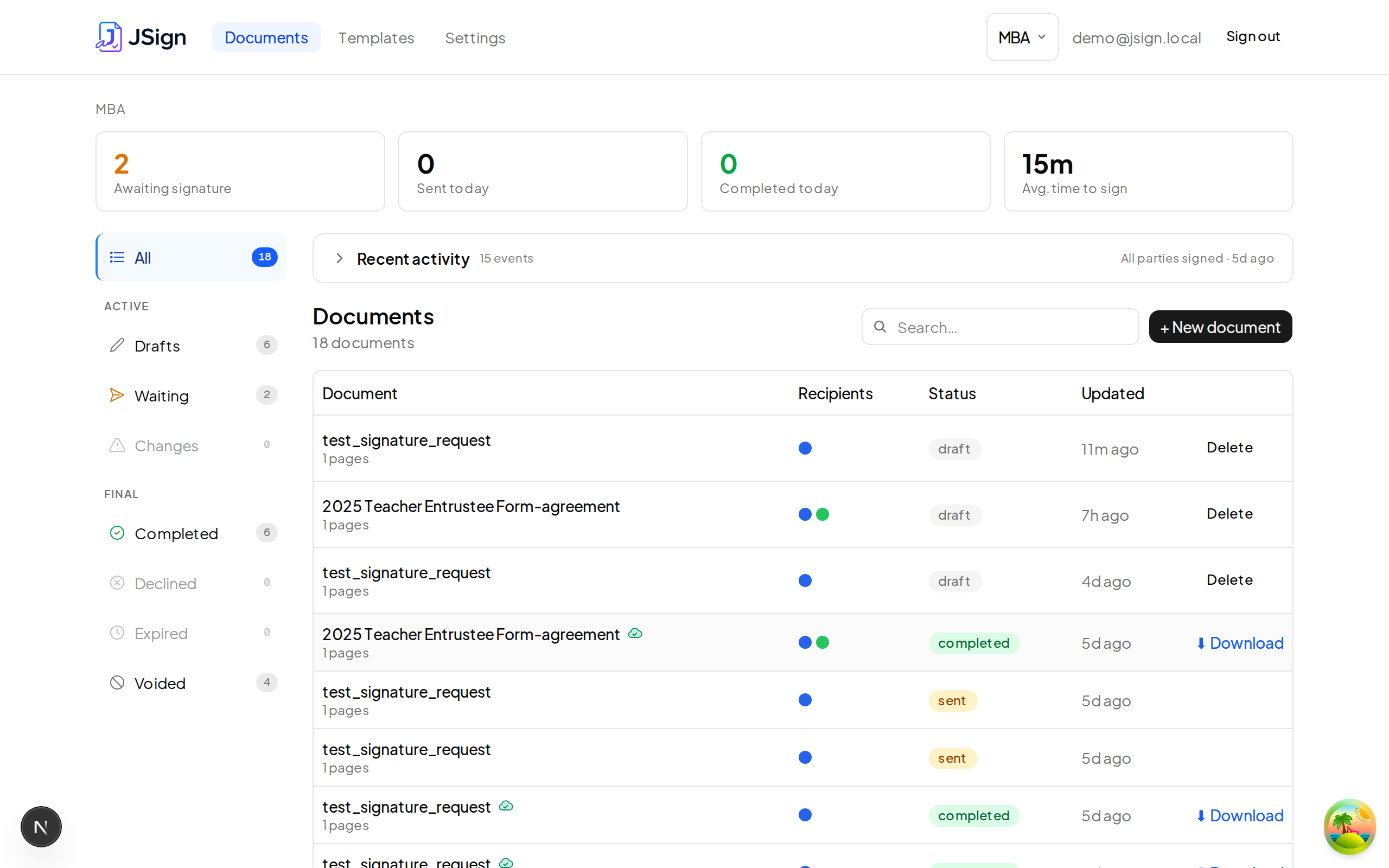
The dashboard summarises your activity at the top and lists every document below. On desktop, the left sidebar filters by status (Drafts, Waiting, Completed, Voided, etc.); on a phone the same status filters slide down from the hamburger menu in the top-right.
# 2. Start a new document
Click + New document in the top-right of the dashboard (or open the hamburger menu on a phone). The wizard opens to step 1 — Upload.
Desktop view:
On a phone:
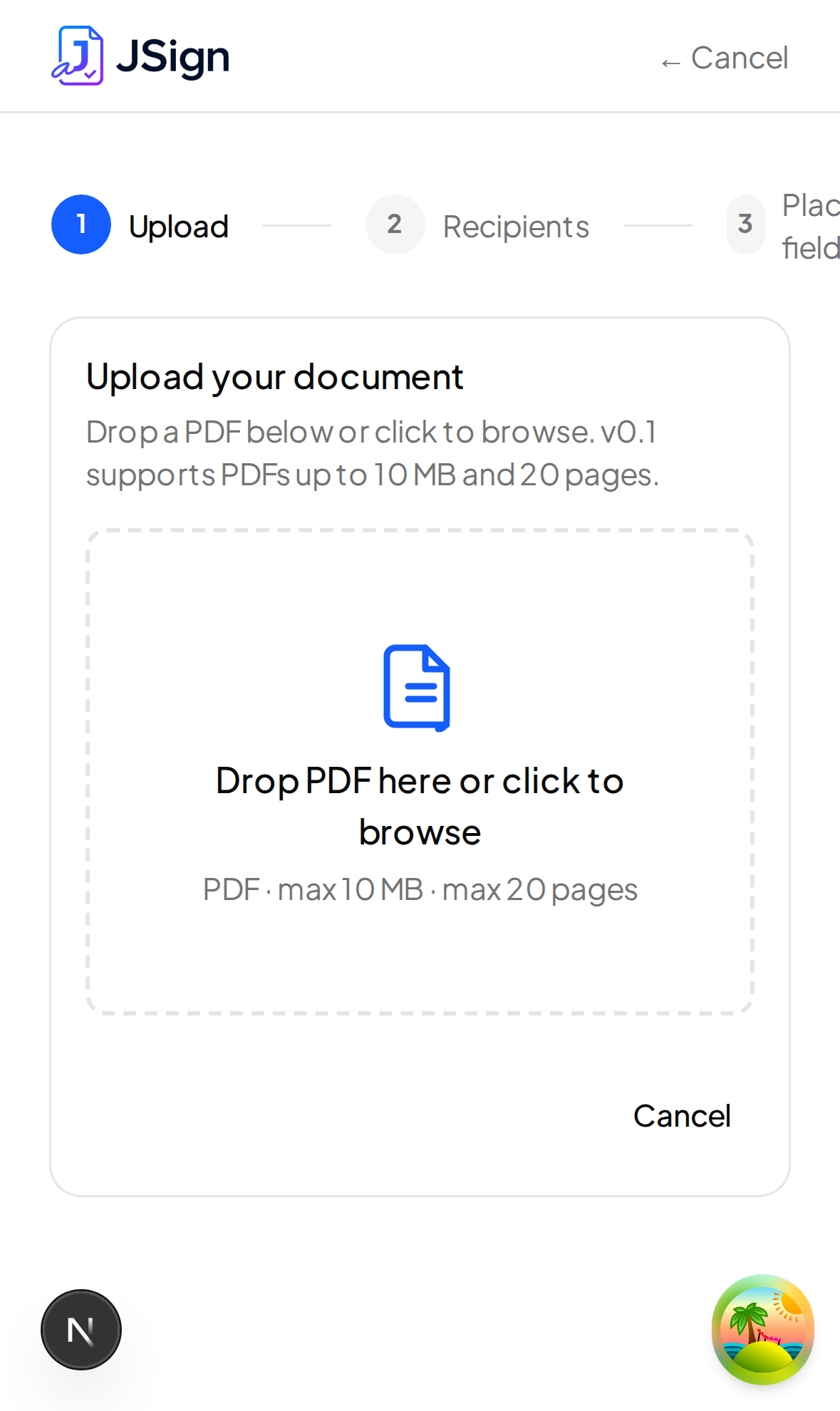
Drop a PDF onto the dropzone, or click it to pick a file. Limits:
- Maximum 10 MB per upload (configurable).
- Maximum 20 pages per document.
- Encrypted PDFs (the kind with print/copy/edit restrictions) are accepted — eScryber decrypts them server-side via ghostscript before storing.
The server validates and re-saves the file (this is what fixes "Invalid Root reference" rendering issues with quirky PDFs from third-party exporters).
# 3. Add a recipient
After upload you're moved to step 2 — Recipients.
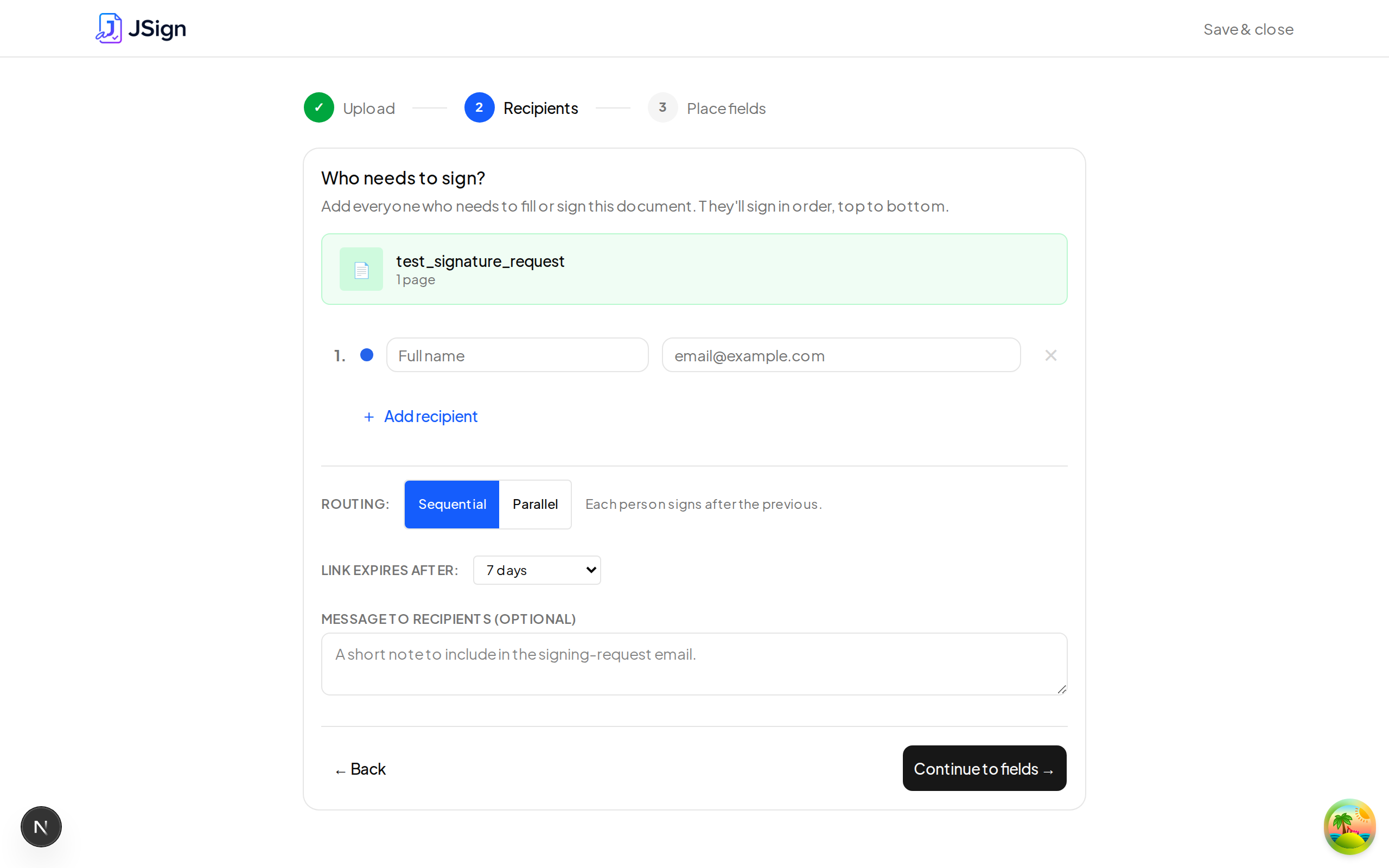
Each recipient gets an email with their own signing link. For each row:
- Name — used as the salutation in the email.
- Email — where the magic link goes.
- Role — defaults to Signer; freeform.
If you add more than one recipient, use the ▲▼ arrows to set the order. The recipient at the top is notified first; once they finish, the next one is notified automatically (sequential routing).
Click Continue → to move to the editor.
# 4. Place fields
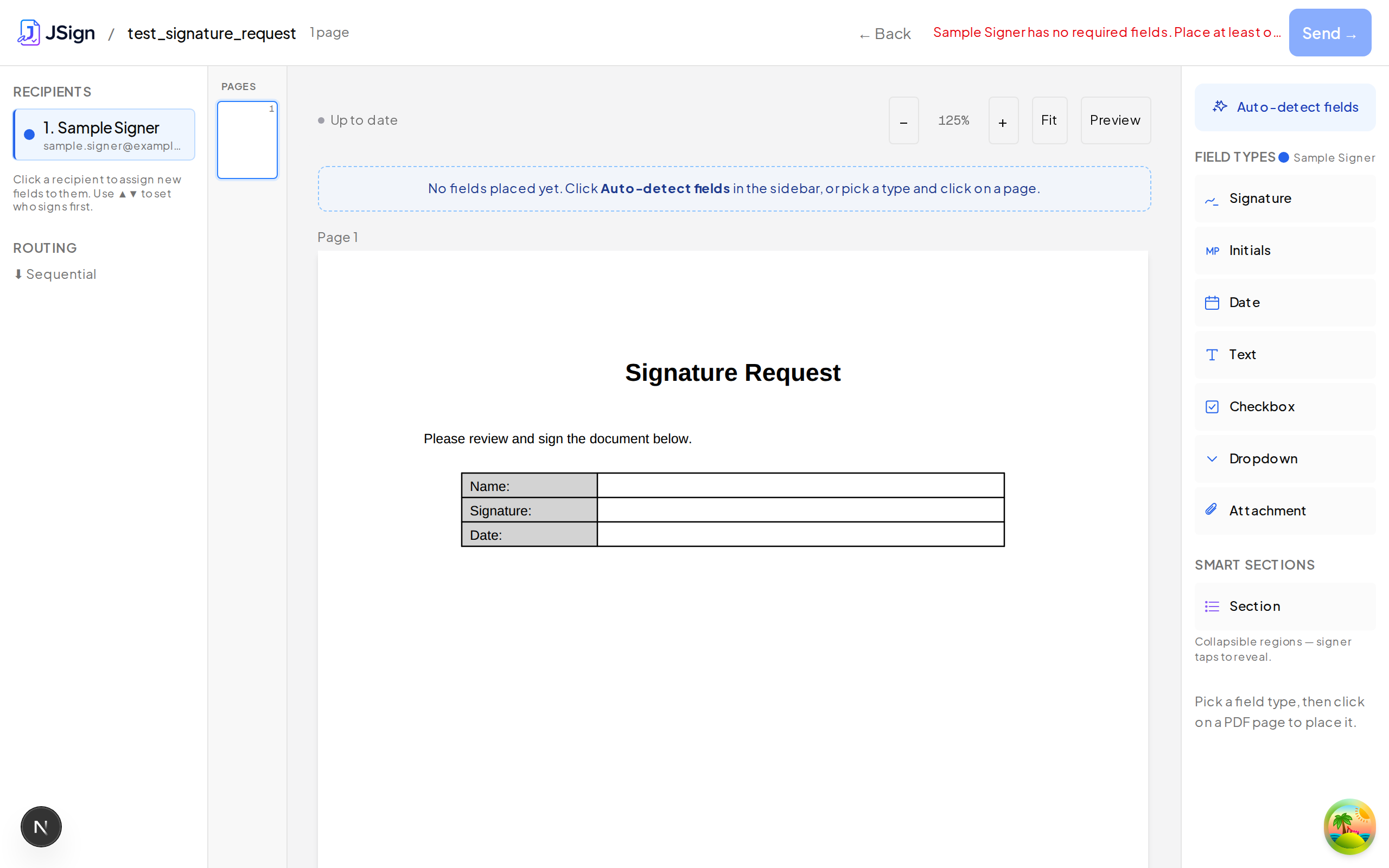
You're now in the editor. The PDF renders in the centre; the right rail lists the available field types. The editor is optimized for desktop — the split-pane layout (recipients · PDF · field rail · properties) needs room. On a phone, use the dashboard and detail pages to track sent documents, but build them on a laptop.
# Auto-detect fields
For PDFs that already have signature lines, blank underscores, or checkbox glyphs, click ✨ Auto-detect fields in the editor header. eScryber scans the PDF and places suggestion rectangles — dashed teal outlines — wherever it finds a likely fill target. A banner at the top of the canvas shows how many suggestions are pending.
For each suggestion you'll see a ✓ (accept) and ✕ (reject) chip. Accept the ones that look right; reject the rest. Accepted suggestions become regular fields you can still move and resize. Rejected ones disappear and are excluded from the send-validation check.
Auto-detect runs three passes in priority order:
- Text tags — if your PDF was authored with inline tags like
[sig|req|1]or[date|opt|2], they're placed automatically as confirmed fields (no review step). You can use this to pre-wire fields in Word/Google Docs before exporting to PDF. - AcroForm widgets — PDFs from Acrobat or online form builders carry interactive form data; these are extracted as high-confidence suggestions.
- Pattern heuristic — underscore runs (
___), "X ___" signature lines, checkbox glyphs, and labeled blanks ("Name:", "Date:") are detected per-blank. Standalone labels place the suggestion to the right; signature context near an "OWNER SIGNATURE" heading promotes the type to SIGNATURE automatically.
If none of the above applies, or you prefer placing fields by hand, skip the button entirely.
# Manual placement
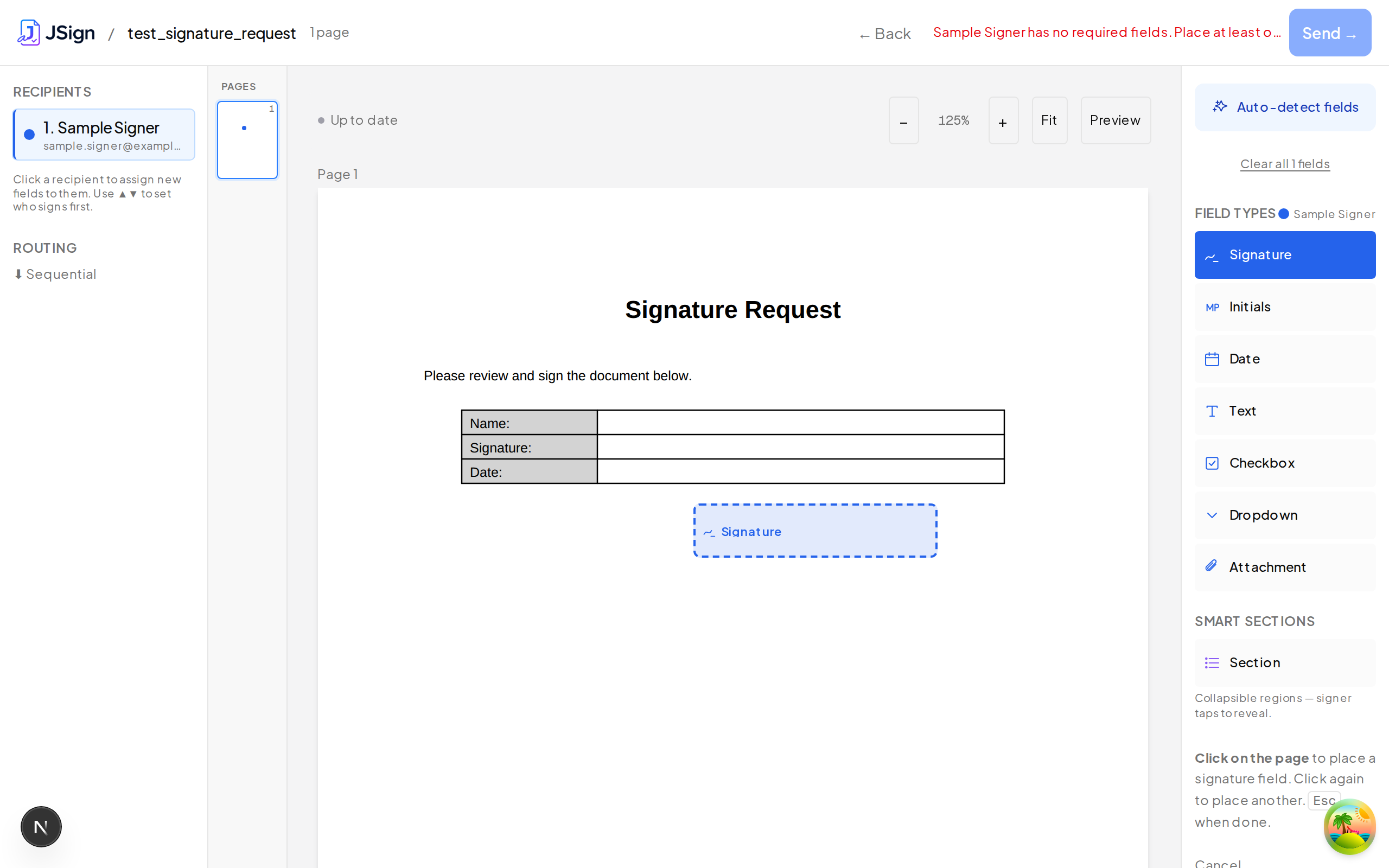
Click a field type in the rail (e.g. Signature). The cursor turns into a crosshair and the rail entry highlights — that's your armed tool.
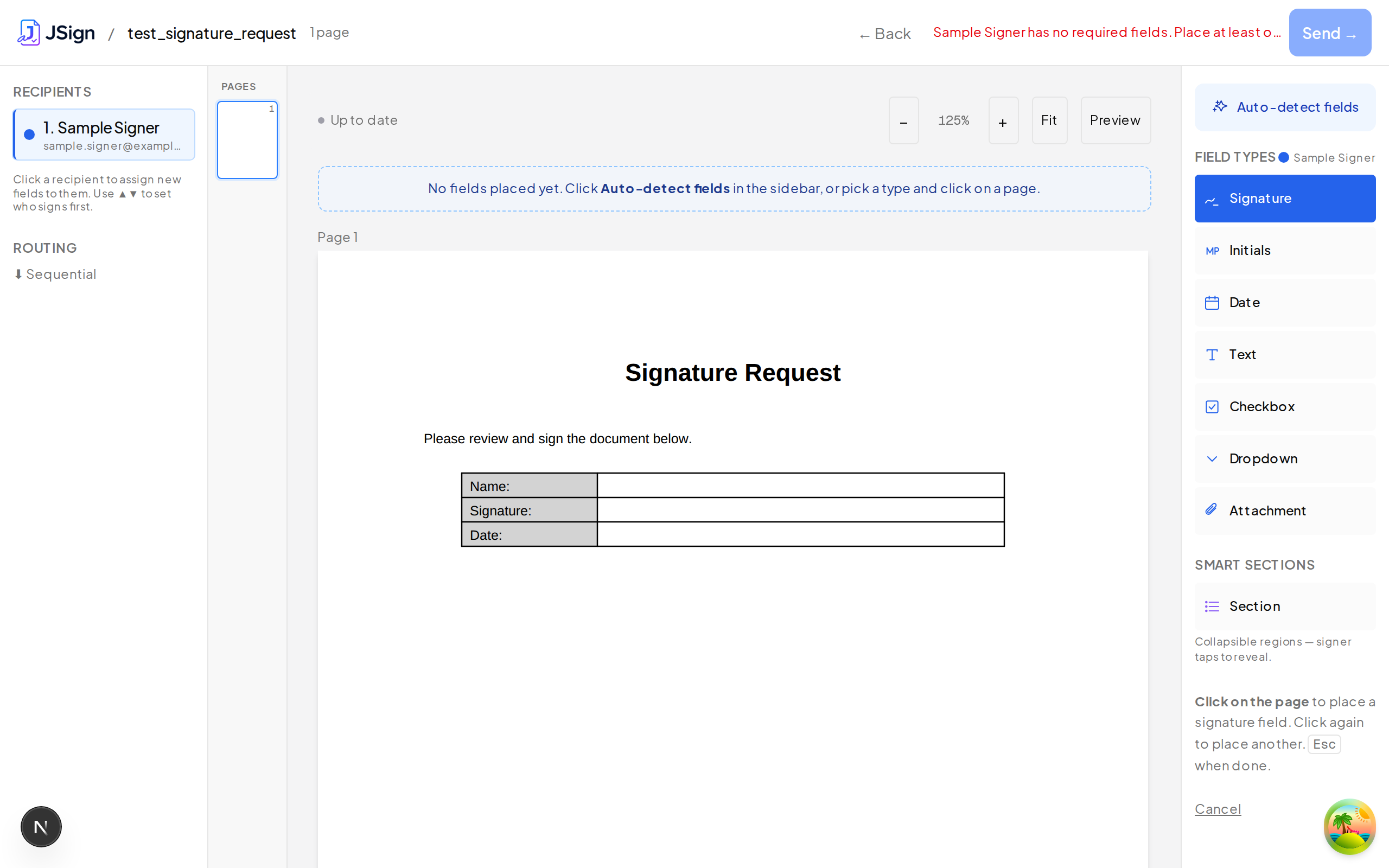
Click anywhere on the page to drop a field there. The tool stays armed so you can drop multiple fields of the same type without re-clicking the rail. Press Esc when you're done.
# Keyboard shortcuts and multi-select
- Esc — disarm the current tool (stop placing) or deselect all fields.
- Delete / Backspace — remove selected fields.
- Cmd+D / Ctrl+D — duplicate selected fields.
- Arrow keys — nudge selected fields by 1 pt; Shift+Arrow nudges by 10 pt.
- Marquee select — click-drag on an empty area of the canvas to draw a selection rectangle; all fields inside are selected. The multi-select toolbar appears with bulk delete, duplicate, and reassign-recipient actions.
# Routing order (sequential vs. parallel)
The Recipients rail has a Sequential / Parallel toggle. In sequential mode (the default) recipients sign one at a time in order — each is notified only after the previous one finishes. In parallel mode all recipients are notified simultaneously and can sign in any order.
# Field-placement tips
- Click inside a table cell and the field snaps to the cell bounds. No more wrestling with default sizing.
- Drag any field to move it; drag the corner handles to resize.
- Click a placed field to open its properties panel: required toggle, hint text, default value, and recipient assignment.
- Need to fill something yourself before sending? Choose "Me (Pre-fill)" as the recipient on a field. After clicking Send you'll be routed through a dedicated pre-fill step before the recipient sees the doc.
- TEXT fields accept a regex pattern: in the properties panel, set Validation pattern (a regex) and an optional Hint message. The signer sees the hint if their input doesn't match. Use this for things like postal codes, employee IDs, or reference numbers.
- Conditional fields: any field can be shown or hidden based on what the signer picks in a CHECKBOX or DROPDOWN field. Open the properties panel, scroll to Show field only when, and choose the trigger field and the value it must equal. Chains cascade — a hidden trigger keeps its dependents hidden too.
- Attachment fields: place an Attachment field (paperclip icon in the rail) to ask the signer to upload a supporting document — an ID, signed W-9, or similar. The upload is magic-byte validated (PDF, PNG, JPEG, GIF, WebP) and its SHA-256 hash is recorded in the audit trail.
Every recipient must have at least one required field assigned to them; the Send button stays disabled otherwise, with a clear hint about who's missing one.
Optional: preview mobile signing. When AI reflow is enabled on your account, you'll see a 📱 Mobile preview button next to Send. Click it to see the document the way phone signers will — paragraphs flow to viewport width and fields render inline in the prose instead of as overlay rectangles on a PDF canvas. The first preview takes 5–30 s while the LLM does the conversion; subsequent previews on the same document are instant. If you don't see the button, reflow isn't enabled — desktop signers see the original PDF either way; mobile signers get the existing overlay view.
# 5. Send
When every recipient has at least one required field, the Send button turns blue.
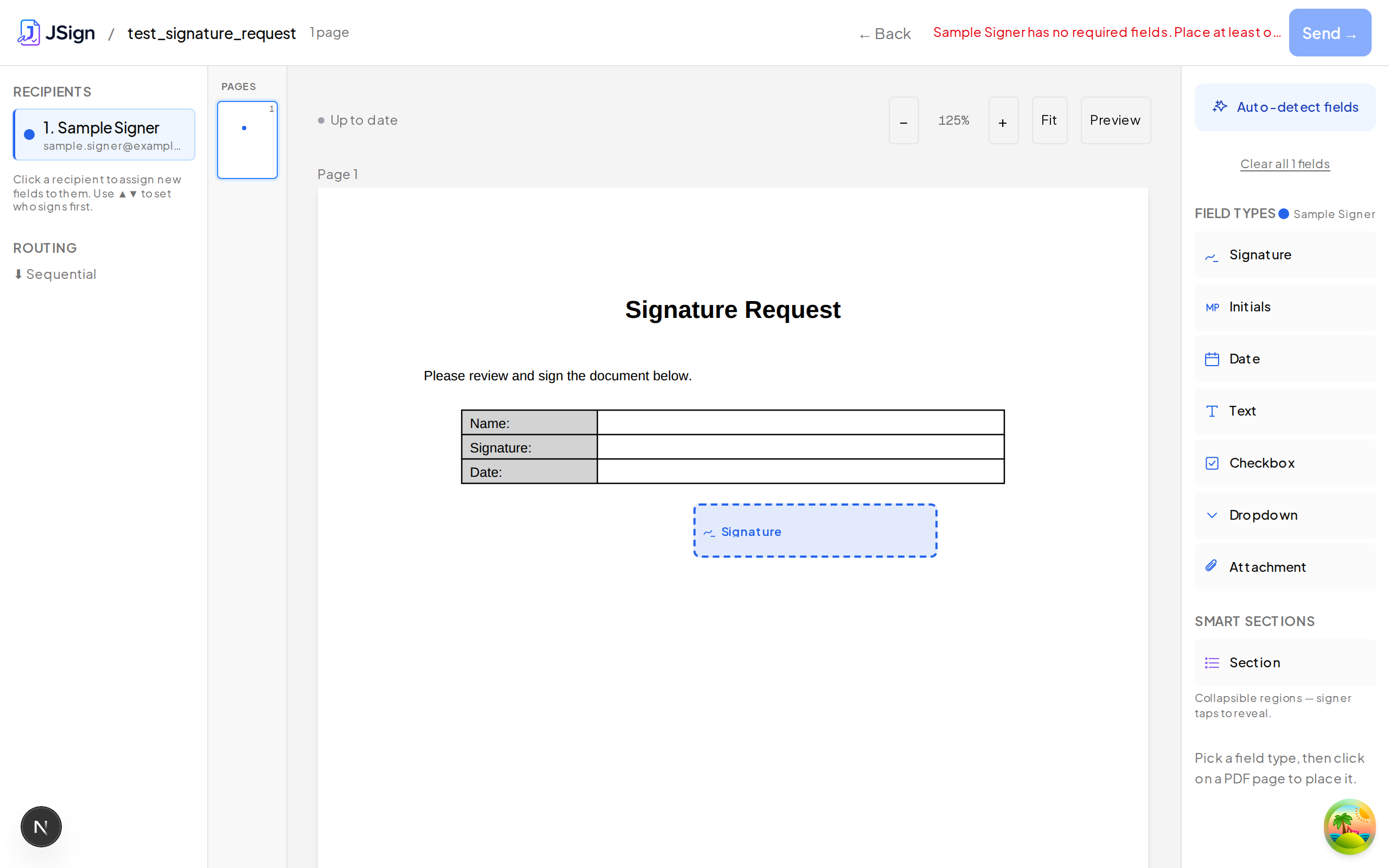
Click Send →. eScryber will:
- Generate one-time signing tokens for recipients.
- Queue notification emails (first recipient only for sequential; all at once for parallel).
- Move the document to Sent status.
- Redirect you to the documents list, with the freshly-sent doc at the top.
The recipient opens the email, clicks the link, signs, and you'll see the doc transition to Completed with a stamped, sealed PDF you can download. Webhooks fire at every milestone if you've configured them.
When the last recipient signs, you'll also get a completion email — subject "All signed: " — listing every signer and a link straight back to this document's detail page where the stamped PDF and audit certificate are ready to download. Each signer gets their own completion email at the same time with a 30-day download link, so they don't have to ask you to re-send the original.
# What you'll see on the document detail page
Once the doc is sent:
- Comments — signers can post questions via the Ask button during signing. A Comments panel appears on the document detail page where you can read each comment, resolve it, or reply by email. A comment doesn't stall the signing flow — the signer can still finish and submit.
- Forwarding — a recipient may delegate their slot to someone else. If they do, the audit trail shows who forwarded to whom, and you'll see the new recipient in the recipient list. You can disable forwarding per document via the Forwarding toggle in the editor's Recipients rail (or per template, on the template's edit page — new documents inherit the template setting). When disabled, the Forward to… button is hidden on the signing page entirely.
- Dashboard search — the search box searches the full text of uploaded PDFs, not just document titles, so you can find a contract by a clause or a party name.
# What's next
- Recipient signing guide — what your recipient sees and how they sign.
- Webhooks — react to
document.completedfrom your own backend. - API tokens — script the whole flow without going through the UI.
- Settings → Security — enable two-factor authentication (TOTP) for your account. Each user manages their own 2FA; it's not admin-controlled.